
Smart Operator Interface (SOI)
Manual declarations and Machine Configuration selection at the machine.
Overview
If you purchase the Production Insights or Work Order Management app, you can enable the Smart Operator Interface (SOI) to capture manual declarations directly at the machine.
In the current SOI flow, operators can:
- Select and apply a Machine Configuration
- Fill the parameters requested by that Machine Configuration
- Record good and bad pieces
- Causalize downtimes so platform KPIs remain complete and trustworthy
Older UI or legacy docs may still refer to Operations. In the current product, this workflow is documented as Machine Configurations.
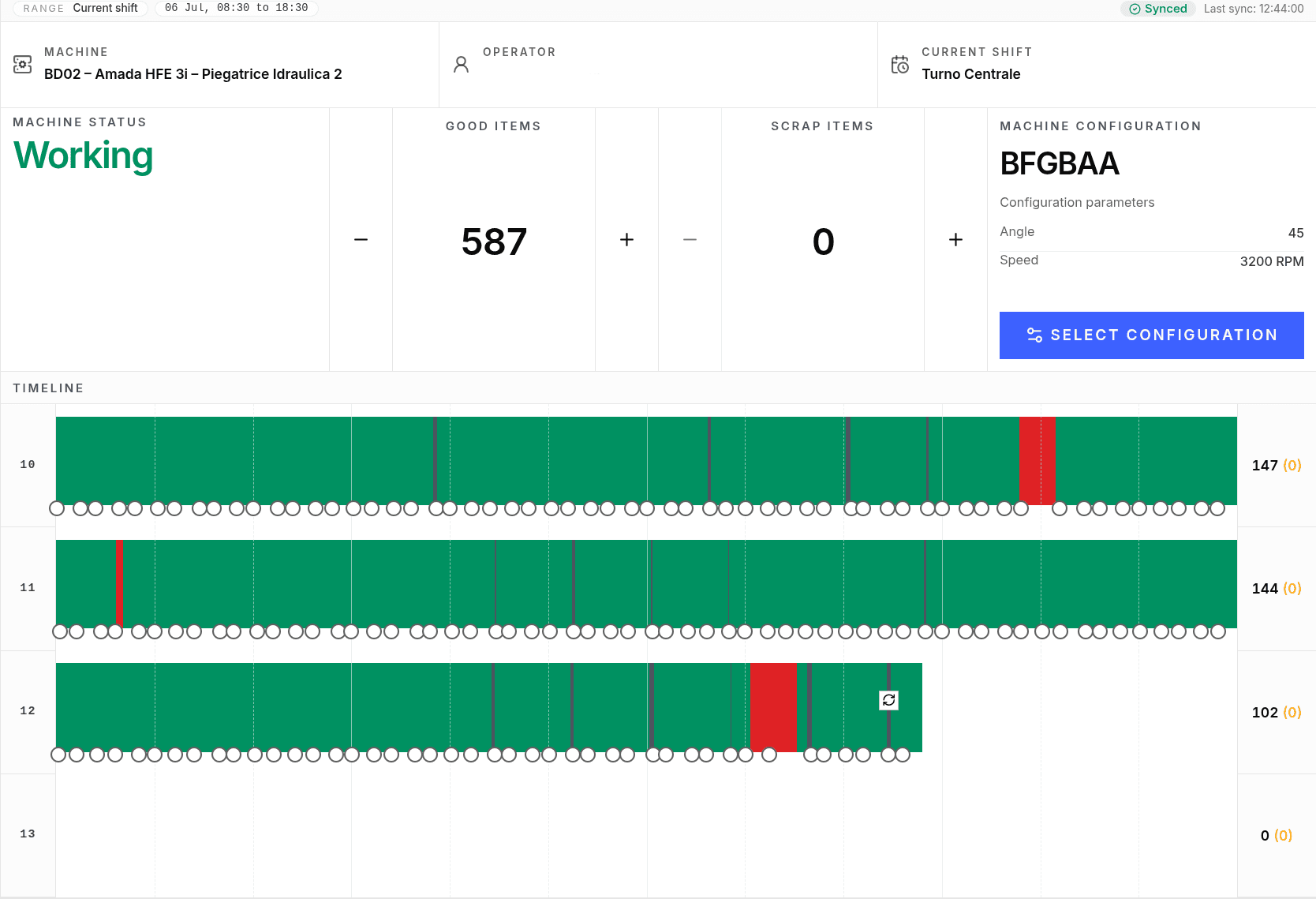
Machine Configurations in SOI
When a Machine Configuration block is available in SOI, the operator can open the list of compatible Machine Configurations for the current machine.
The operator can then:
- Search and select the correct Machine Configuration
- Review the parameters shown for that configuration
- Fill all required parameters
- Apply the configuration
The visible parameters come from:
- Reusable Machine Configuration parameters defined on the linked asset
- Additional parameters defined directly on the Machine Configuration
Depending on how the parameters are configured, applying the Machine Configuration can send a device command, record a platform event, or both.
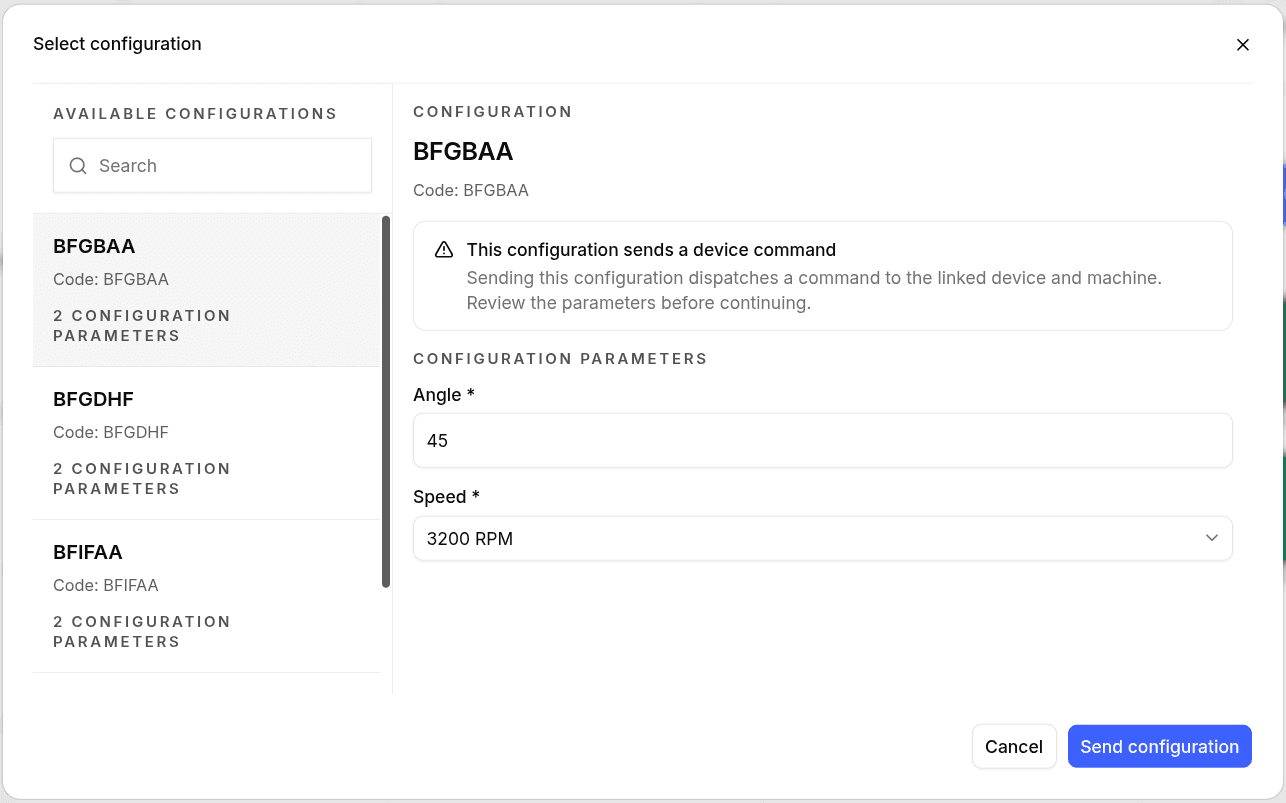
Operator Declarations
Outside of Machine Configuration selection, the Smart Operator Interface still supports the core operator workflows:
- Declare Good/Bad pieces Use the dedicated controls to increment or correct production counts as work progresses.
- Record a Downtime Open the manual declaration flow, choose the reason, optionally add a note, and confirm.
These declarations continue to feed Productivity, Machine Configurations, Downtimes, and reporting views.
Best Practices
- Start each run by selecting the correct Machine Configuration
- Fill required parameters before applying the configuration
- Record Good/Bad in real time to avoid end-of-shift backlog
- Causalize stops as they happen so reporting stays aligned with the real production context