
Asset Manager
Create assets, manage their metadata, and inspect linked agents.
Asset Manager
The Asset Manager lets you create assets, classify them by type, and keep track of how many agents are linked to each asset.
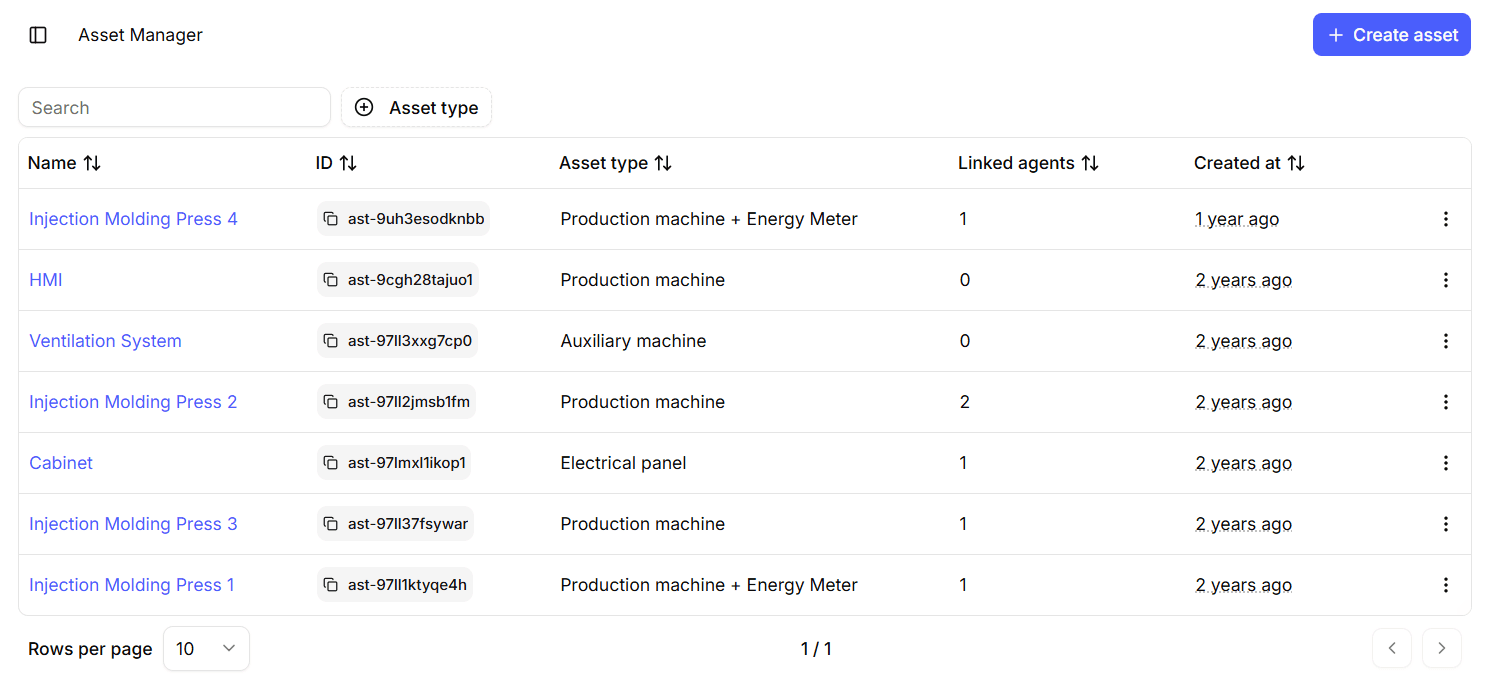
Asset List
The main page of the Asset Manager is a table where each row represents one asset.
The table includes these columns:
- Name
- ID
- Asset type
- Linked agents
- Created at
Name
The asset name is the main label used to identify the asset in the platform.
- Clicking the asset name opens the asset details page.
ID
The ID column shows the unique asset identifier.
Asset Type
The Asset type column shows the classification assigned to the asset. Supported values are:
- Production Machine
- Production Machine + Energy Meter
- Auxiliary Machine
- Auxiliary Machine + Energy Meter
- Electrical Panel
- Electrical Panel + Energy Meter
The + Energy Meter variants indicate that the asset includes an energy meter.
Linked Agents
The Linked agents column shows how many agents (devices) are currently linked to the asset.
- An asset can have any number of linked agents.
- This value helps you quickly understand whether the asset is already associated with one or more devices.
Created At
The Created at column shows when the asset was created.
Row Actions
Each row also includes an actions menu, opened from the classic three-dots button.
Available actions are:
- Open: opens the asset details page
- Edit: opens the full asset form in edit mode
- Delete: opens a confirmation dialog before deletion
Create Asset
Use the Create Asset button to add a new asset.
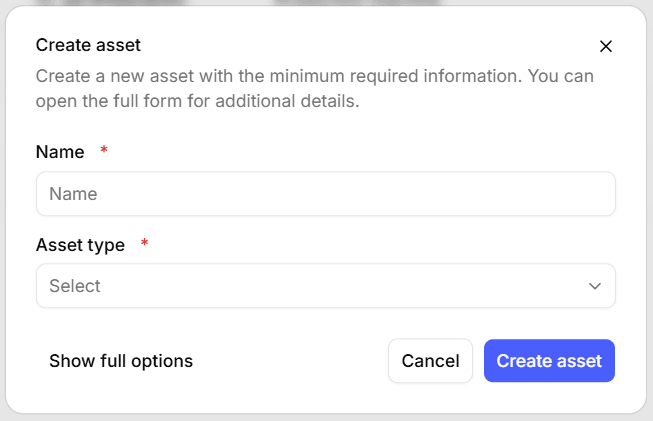
Clicking Create Asset opens a simplified creation dialog with only two required fields:
- Asset name
- Asset type
This quick-create flow is useful when you want to register an asset immediately with the minimum required information.
The dialog also includes an option to open the full version of the form, where you can configure additional metadata.
Full Asset Form
The full asset form is used for:
- Creating an asset with extended information
- Editing an existing asset
The full form is organized into five sections:
1. Overview
This section contains the main identity and classification fields:
- Name
- Asset functionality
- Asset type
- Supported process
- Description
2. Operational Context
This section collects contextual information about how the asset is used:
- Real usage description
- Known criticalities
- Operational notes / best practices
3. Placement and Registry
This section contains registry and placement data:
- Customer asset ID
- Manufacturer serial number
- Plant
- Process phase
4. PLC and Network
This section contains PLC-related information:
- PLC present
- PLC protocol / controller
- PLC IP endpoint
- PLC additional info
5. Supplier and Notes
This section contains supplier and general note fields:
- Supplier company
- Supplier contact
- General notes
Asset Details
Opening an asset shows a read-only details page where all asset information is displayed across five tabs.
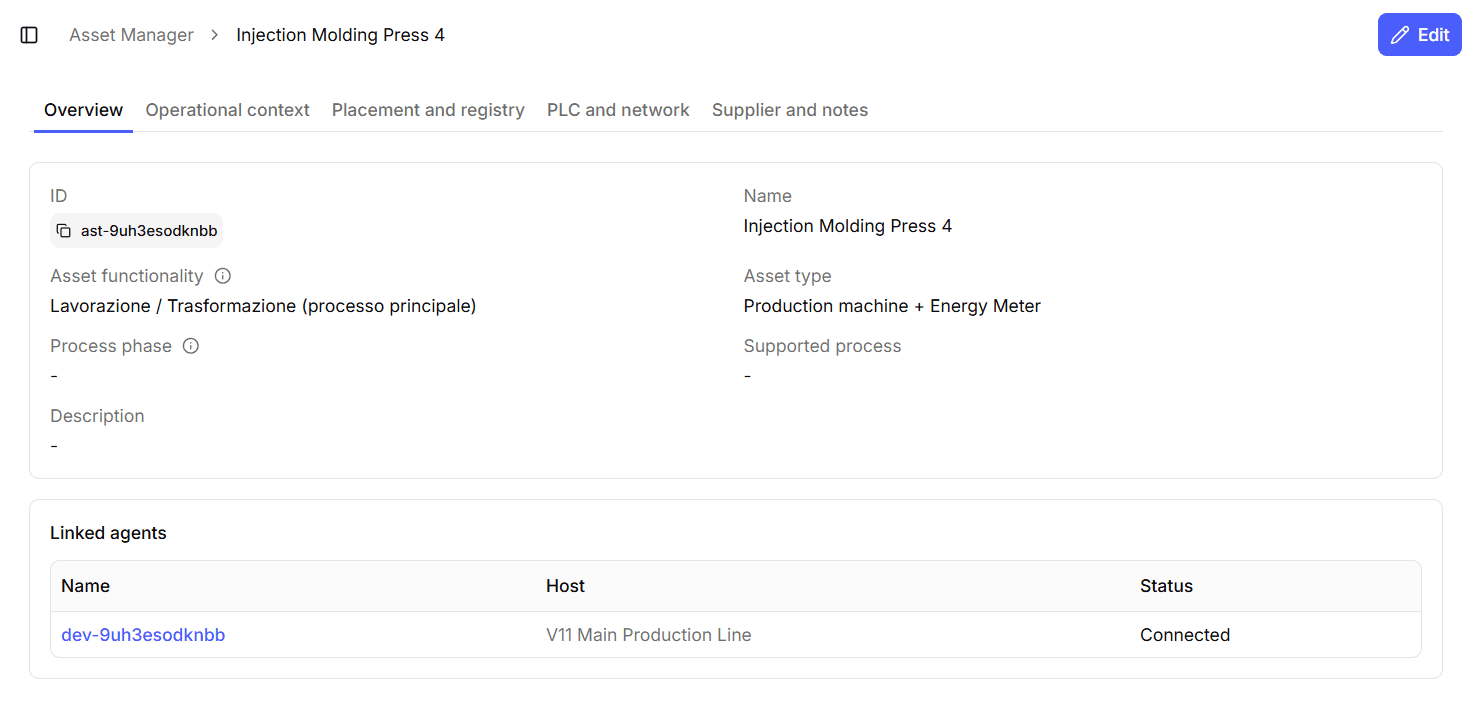
This page mirrors the information managed through the full asset form and makes it easier to inspect the full asset record.
Overview Tab
The Overview tab displays the main asset information:
- ID
- Name
- Asset functionality
- Asset type
- Process phase
- Supported process
- Description
This tab also includes a Linked agents section.
If agents are linked to the asset, they are shown in a table with:
- Agent name
- Host
- Connection status
Operational Context Tab
The Operational Context tab displays:
- Real usage description
- Known criticalities
- Operational notes / best practices
Placement and Registry Tab
The Placement and Registry tab displays:
- Customer asset ID
- Manufacturer serial number
- Plant
- Process phase
PLC and Network Tab
The PLC and Network tab displays:
- PLC present
- PLC protocol / controller
- PLC additional info
- PLC IP endpoint
Supplier and Notes Tab
The Supplier and Notes tab displays:
- Supplier company
- Supplier contact details
- General notes
From the asset details page, users can also open the full edit form.
Delete Asset
Choosing Delete from the row actions menu opens a confirmation dialog.
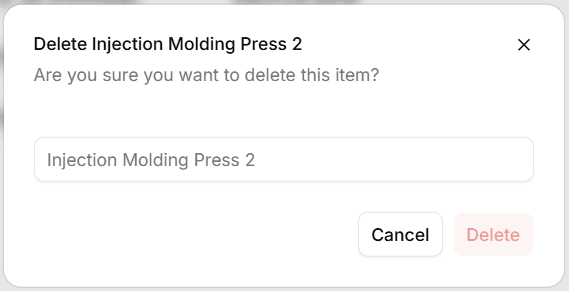
To confirm deletion, the user must type the exact name of the asset.
An asset cannot be deleted if it has linked agents. In this case, the platform shows an error and the asset remains unchanged.
If you need to delete the asset, first unlink all agents associated with it.