
Consumption
Comprehensive guide to the Consumption section of the Energy Monitoring App, detailing energy usage, costs, and environmental impact analysis.
Consumption
The Consumption section of the Energy Monitoring App provides a complete overview of energy usage, costs, and environmental impact across monitored assets. Data is time-based (calculated over the selected range) and aggregated to support analysis and decision-making.
Users can filter the view by:
- Shifts → to compare energy consumption across work schedules
- Time range → to compare data according to selected time period
Machines
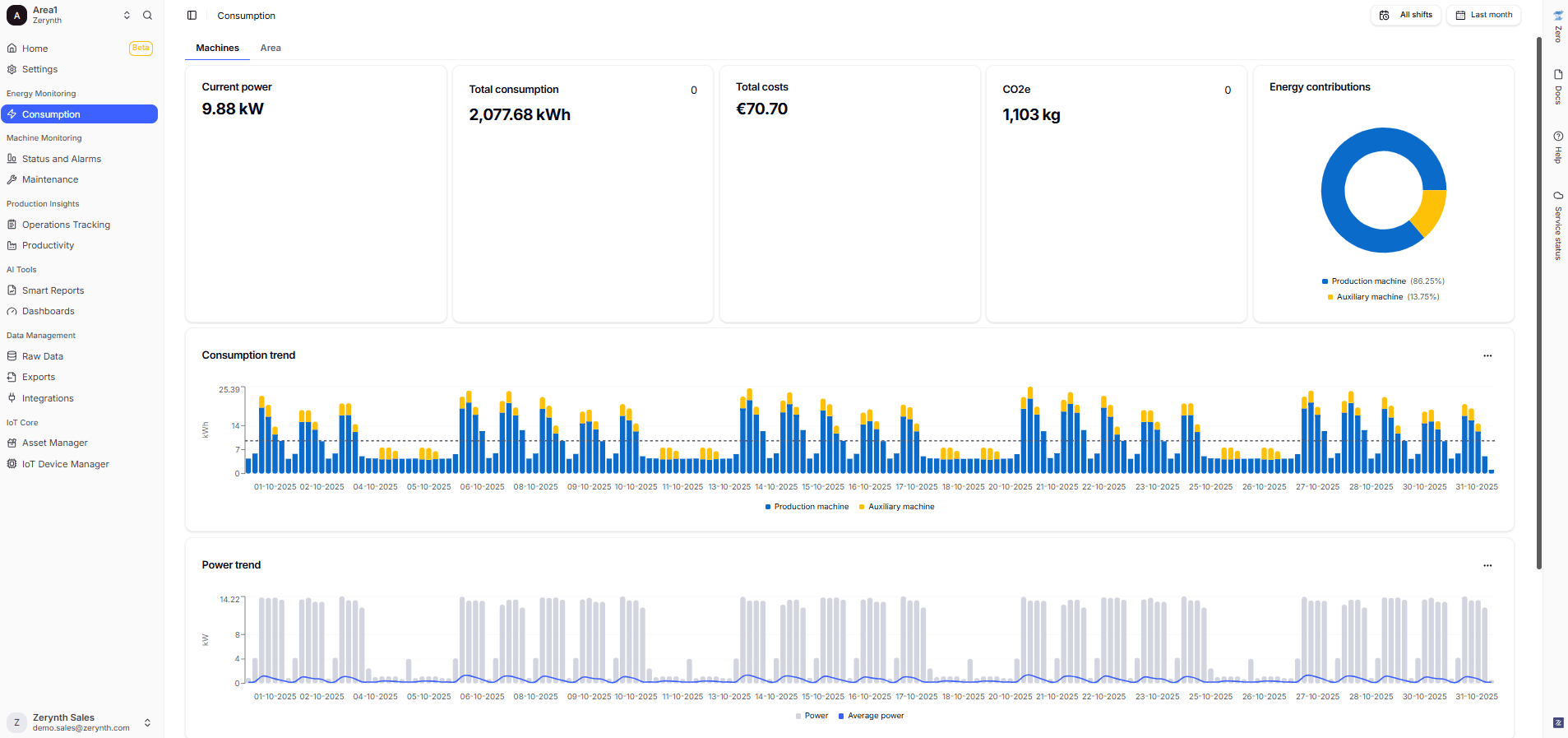
The main panel provides a quick summary of the most important energy indicators, for all machines connected in the factory:
- Current Power → Displays the instantaneous power consumption of the monitored assets in kW. This allows you to understand at any given moment how much energy your machines are drawing.
- Total Consumption → Shows the total energy consumed (in kWh) during the selected time period, helping you compare usage across days, weeks, or months.
- Total Costs → Calculates the energy costs based on the tariff configured in the Settings.
- Values are rounded to two decimal places.
- Costs are shown only if a tariff has been assigned.
- Cost data is not applied retroactively to past consumption.
- CO₂e → Indicates the estimated CO₂ equivalent emissions, calculated in relation to energy costs and based on the energy bill.
- Energy Contribution → Breaks down energy consumption by machine type, distinguishing between production machines and auxiliary machines.
Graphs: Two main charts provide a visual representation of energy usage:
- Consumption Trend → Illustrates the total energy consumption over the selected period, making it easy to identify peaks, patterns, and anomalies.
- Power Trend → Shows the power drawn over time, offering a dynamic view of how machine load evolves.
Both charts present aggregate data from all monitored machines, giving a global overview of factory energy usage.
Detailed Table

By clicking on a specific machine, the table and related metrics are automatically filtered, allowing you to focus on the performance and costs of that single asset.
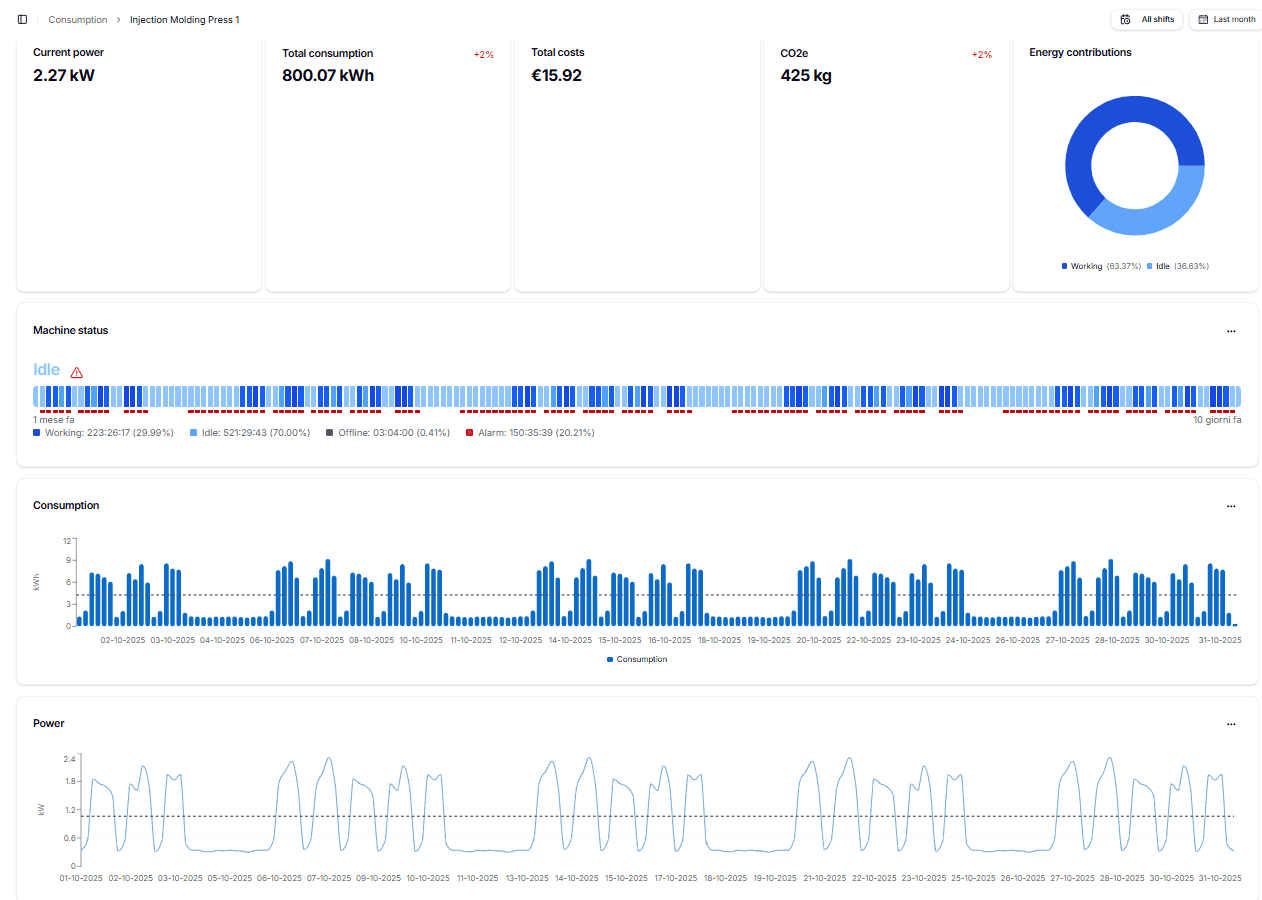
A comprehensive table lists all key information per machine. For each asset, you can view:
- Asset type (production, auxiliary, or electrical panel)
- Current status of the machine
- Active alarms
- Energy consumption (kWh)
- Related costs (€)
- CO₂e emissions
Additional Insights
- Consumption by Status → Provides a distribution of energy consumption across different operational states:
- Working → Energy consumed while machines are operating.
- Idle → Energy consumed while machines are powered on but not producing.
- Alarm → Energy consumed while machines are in error or alarm state.
- This breakdown helps you identify wasteful energy use (e.g., idle consumption) and improve energy efficiency across your production line.
By selecting a machine, the system displays the same information detailed on its consumption trends.
| KPI | Definition | Calculation Method |
|---|---|---|
| Utilization Rate | Percentage of time the machine is effectively used. | (Working Time ÷ (Working + Idle + Alarm Time)) × 100. |
| Consumption | Total energy consumed (kWh). | Integration of instantaneous power readings over the selected time range. |
| Energy Cost | Total cost associated with the energy consumed. | Consumption (kWh) × Configured Energy Tariff. |
| CO₂e Impact | Environmental impact in terms of CO₂ equivalent. | Consumption (kWh) × Emission Factor (kg/kWh) (factor set in Settings). |
Electrical Panels
The Electrical Panels section provides insights into energy usage, alarms, and status across entire distribution boards or cabinets.
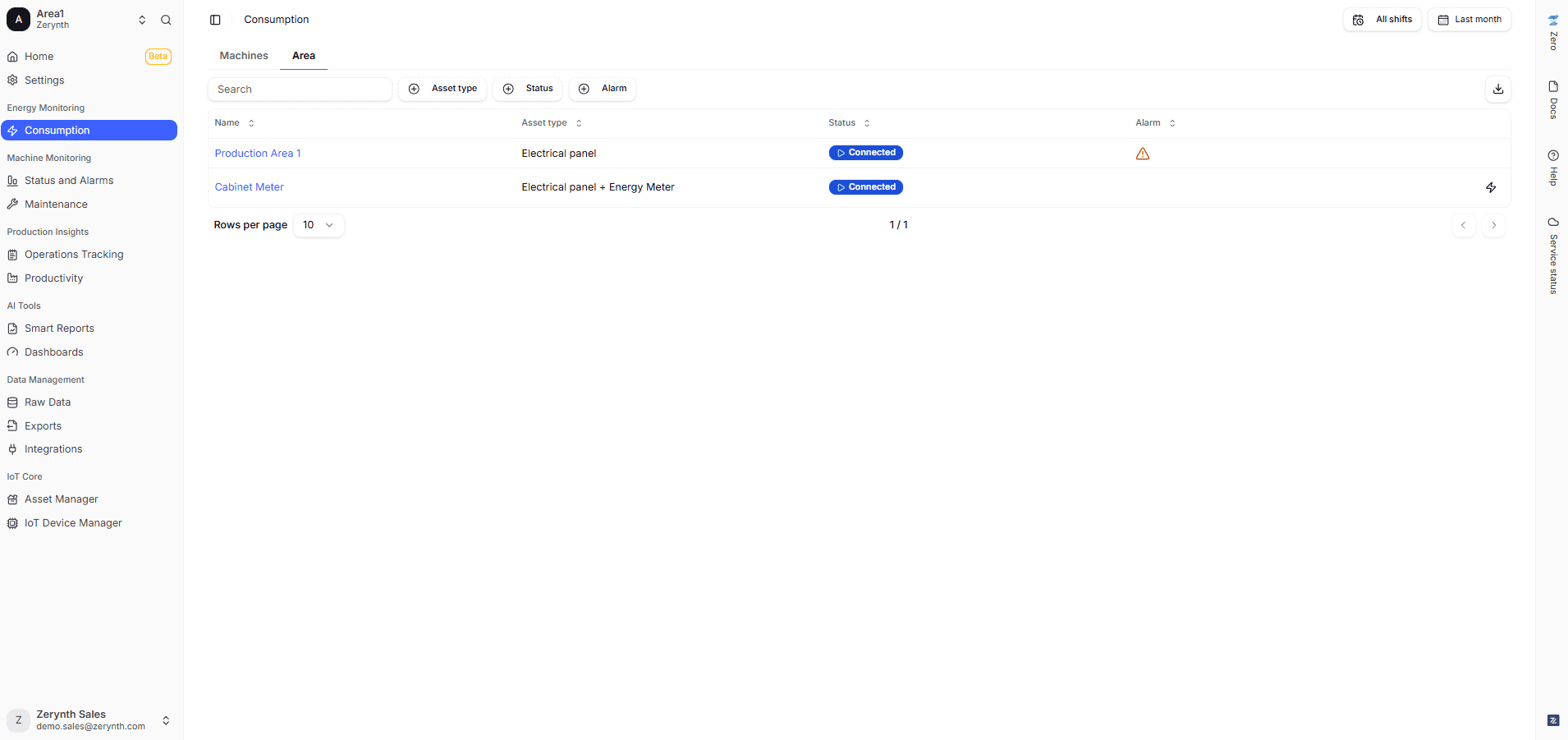
The main page lists all panels in the Workspace, with details including:
- Panel Name – assigned by the user upon creation.
- Status – shows if the panel is Working or Disconnected.
- Alarm – displays an icon if the panel has active alarms.
- Power Analyzer – indicates if a Power Analyzer is connected for more accurate energy readings.
By clicking on a panel name, the system opens a detailed view. In the header, you can visualize machine status (if you also have Machine Monitoring App active).
Input Lines Cards
The Input Lines section provides real-time monitoring of the electrical input lines connected to the system. It includes the following information:
- Line Status Displays the list of connected lines (e.g., Line 1, Line 2, Line 3). For each line, the current connection status (Connected) and the instantaneous power consumption (kW) are shown
- Current Power Shows the total instantaneous power drawn by all connected lines, expressed in kW.
- Total Consumption Displays the total amount of energy consumed by the monitored lines during the selected time period (kWh).
- Consumption Input (Chart) A donut chart showing the percentage distribution of energy consumption across the input lines. Each color corresponds to a specific line.
- Phase Unbalance Indicates the percentage of imbalance between the three electrical phases. A lower value represents a better load distribution across phases.
- CO₂e Displays the equivalent CO₂ emissions (in kg) associated with the energy consumption, calculated based on the configured energy tariff.
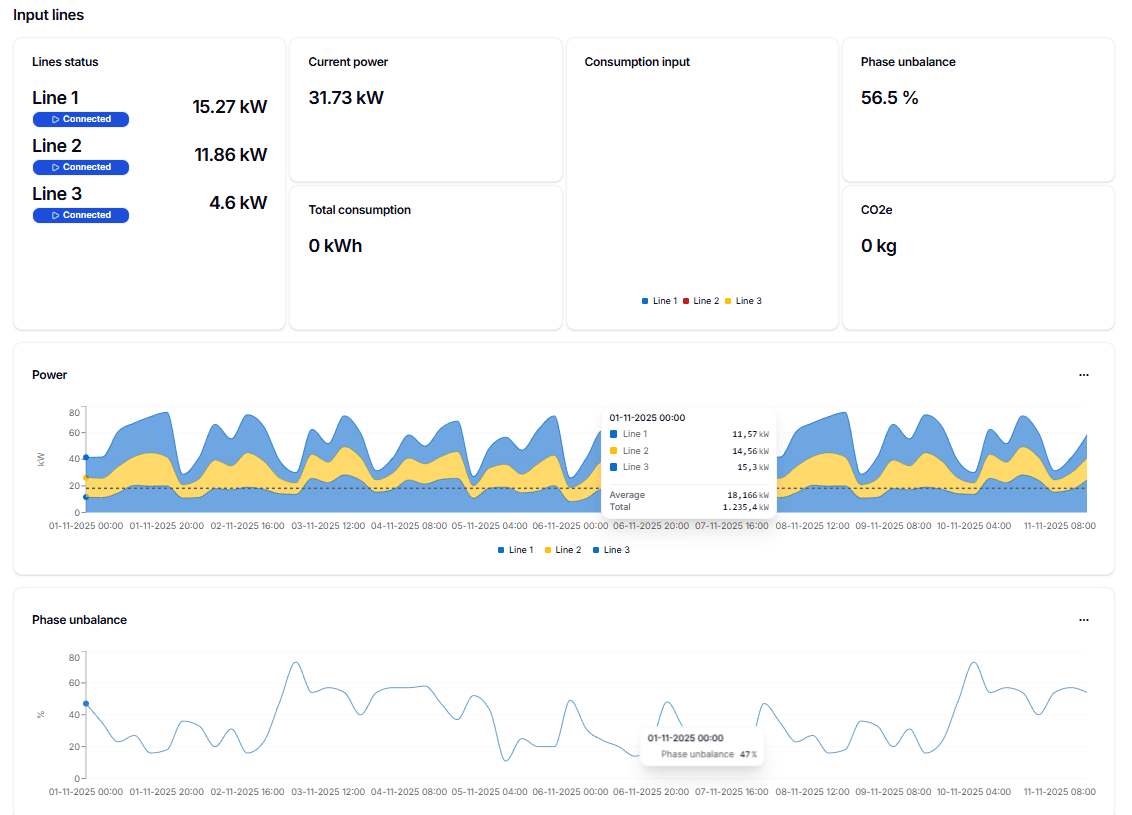
The Power chart displays the instantaneous power drawn by each input line over time.
-
The graph is stacked by line:
- Blue (Line 1)
- Yellow (Line 2)
- Light Blue (Line 3)
-
The vertical axis shows power in kW, while the horizontal axis represents the selected time range.
-
This view allows you to identify:
- Load variations during production cycles.
- Peaks and valleys in energy usage.
- Relative contribution of each line to the overall load.
Instead, the Phase Unbalance chart shows the percentage difference between the three electrical phases over time.
- The vertical axis shows the imbalance percentage (%), while the horizontal axis corresponds to the selected time period.
- Key insights:
- A low and stable value indicates that the load is evenly distributed across the phases, ensuring efficient operation.
- High or fluctuating values may highlight electrical inefficiencies or uneven load distribution, which could lead to increased energy losses, equipment stress, or reduced system reliability.
Output Lines Cards
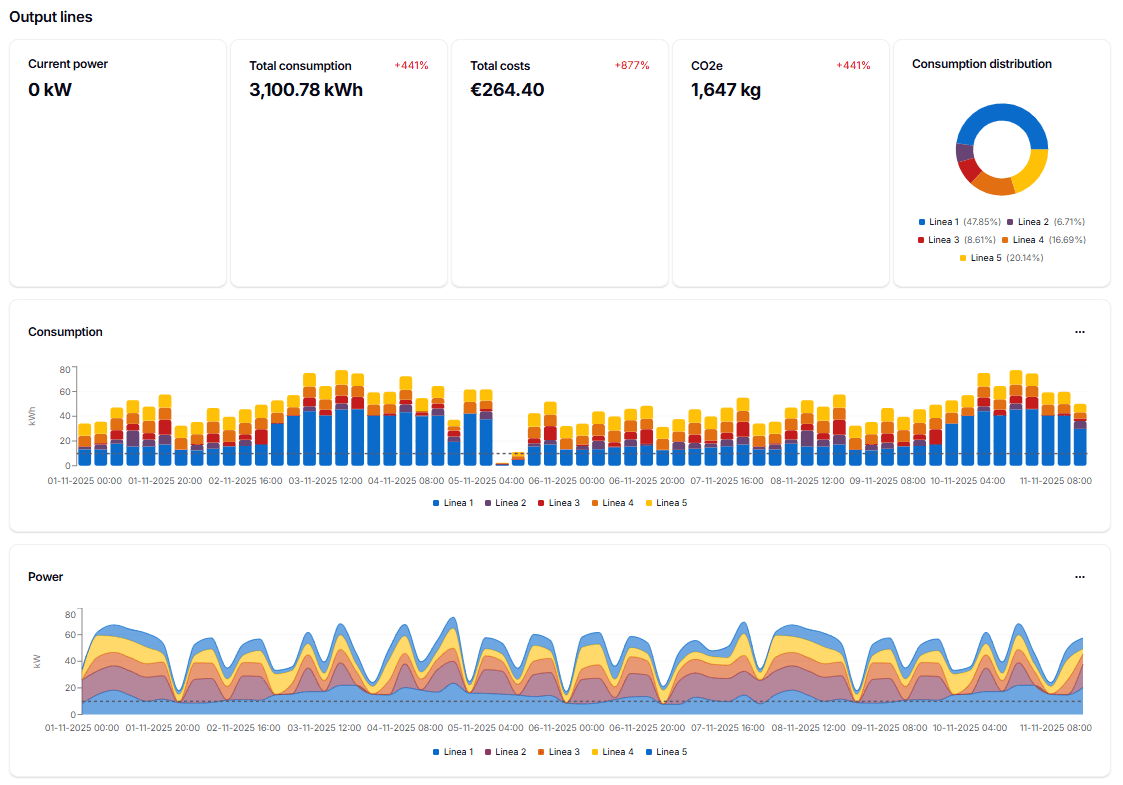
- Current Power – instantaneous consumption (kW).
- Total Consumption – energy consumed (kWh) within the selected time range.
- Total Costs – cost calculated as Consumption × Energy Tariff.
- CO₂e Displays the equivalent CO₂ emissions (in kg) associated with the energy consumption, calculated based on the configured energy tariff.
- Consumption Distribution – share of total consumption by each output line.
The same typology of graphics (both Power chart and Phase Unbalance) shows the same correlation between output lines.
Single Line View
Clicking on an output line name opens a detailed page with:
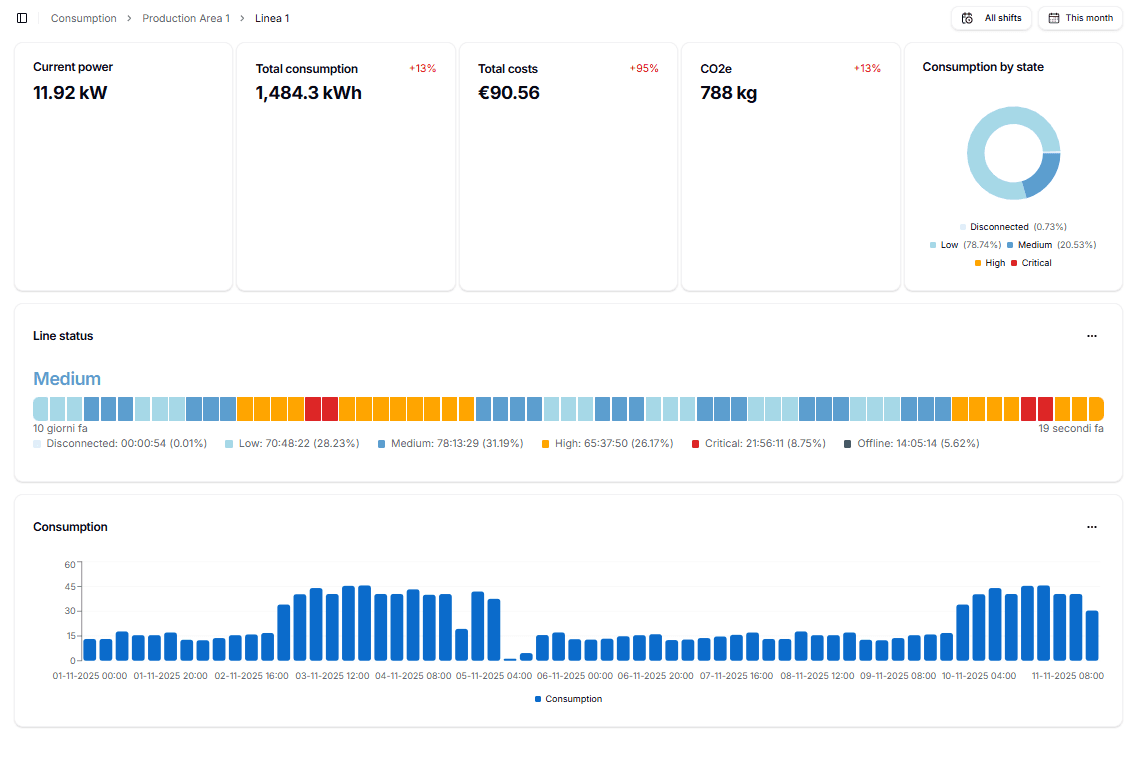
- Panel Status – current status of the panel
- Current Power – instantaneous consumption.
- Total Consumption – cumulative energy consumed in the selected period.
- Total Costs – calculated based on configured tariffs.
- Consumption by State – pie chart splitting energy usage by cabinet status.
- Timeline and Chart – status distribution and consumption over time.
| KPI | Definition | Calculation Method |
|---|---|---|
| Overall Status | Indicates whether the panel is supplying power (Working) or not (Disconnected). | If at least one input line is disconnected, the overall status = Disconnected. Otherwise = Working. |
| Line Status | Shows the status of each input line as a dot (green = active, grey = disconnected). | A line is considered Disconnected if it absorbs < 5% of its maximum rated power. |
| Phase Unbalance | Percentage difference in load between the three phases of the panel. | (Max Phase Current – Min Phase Current) ÷ Average Phase Current × 100. (Requires Power Analyzer) |
| Working Time | Total time the panel supplies power to connected assets. | Sum of intervals where the overall status = Working. |
| Disconnected Time | Total time the panel does not supply power. | Sum of intervals where the overall status = Disconnected. |
| Alarm Time | Cumulative time when alarms or anomalies are active. | Sum of intervals flagged by alarm signals. |
| Consumption | Total energy consumed (kWh) by all monitored lines. | Integration of instantaneous power readings over the selected time range. |
| Energy Cost | Total cost associated with the consumed energy. | Consumption (kWh) × Configured Energy Tariff. |
Note:
- All costs are calculated in the configured currency and tariff set in Settings.
- Delta % values are color-coded (green/red/grey) to highlight trends compared with the previous equivalent period.
- Environmental impact (CO₂e) is calculated when an emission factor is configured in Settings.
- Phase unbalance and advanced electrical parameters are available only when a Power Analyzer is connected.
Advanced Parameters
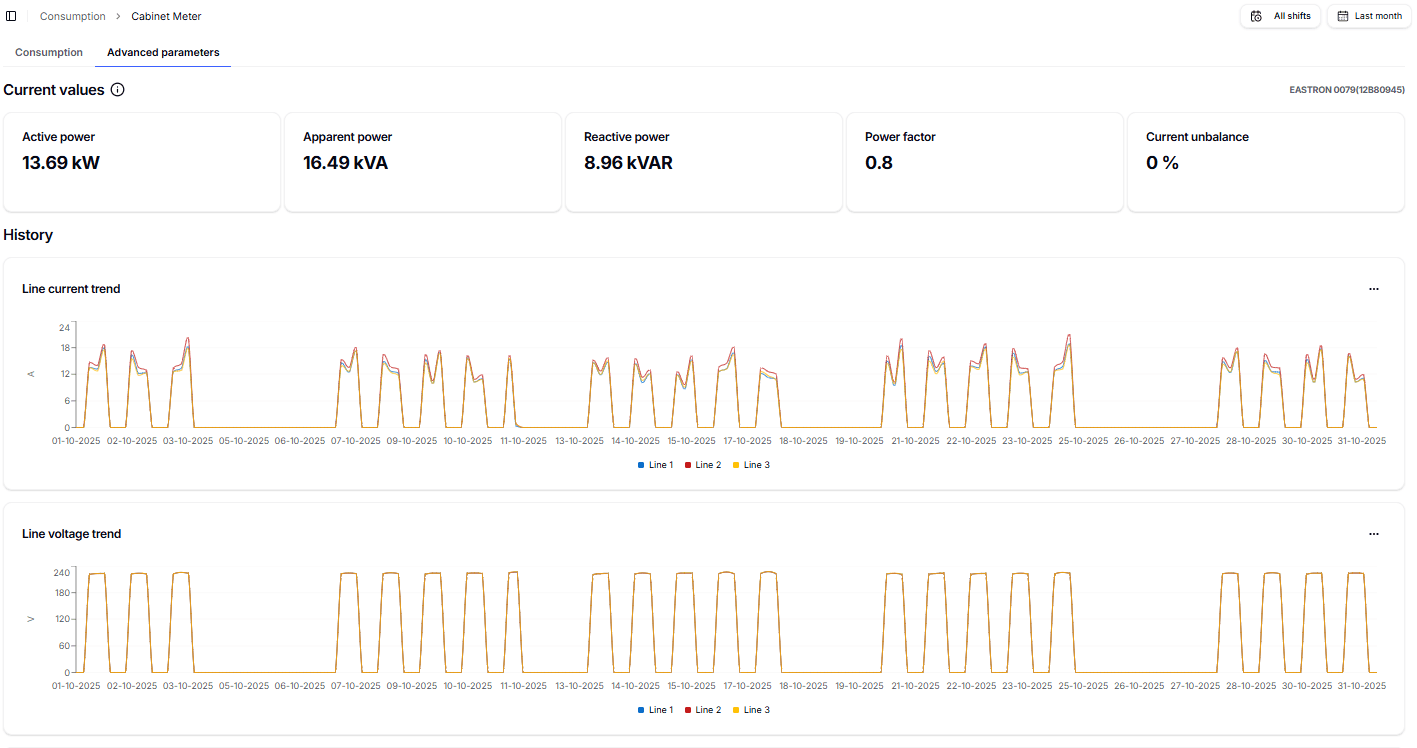
In the Advanced Parameters section, you can visualize detailed electrical parameters for the selected cabinet meter:
- Active Power (kW) → Real power effectively used by the equipment (e.g., 2.77 kW).
- Apparent Power (kVA) → Total supplied power, including both active and reactive components (e.g., 8.21 kVA).
- Reactive Power (kVAR) → Power oscillating between source and load that does not perform useful work (e.g., 4.88 kVAR).
- Power Factor → Ratio between active power and apparent power. A value close to 1 indicates efficient energy use, while lower values (e.g., 0.8) suggest higher reactive energy and possible inefficiencies.
- Current Unbalance → Percentage imbalance between phases. A value of 0% indicates perfectly balanced phases.
Two line charts show how electrical parameters evolve over time:
- Line Current Trend (A) → Displays the current drawn on each phase (Line 1, Line 2, Line 3). Balanced values across phases confirm stable load distribution.
- Line Voltage Trend (V) → Shows the voltage across phases. Uniform trends confirm system stability.
The Power Trend chart compares the three types of power:
- Active Power (kW) → Real energy used for productive work.
- Reactive Power (kVAR) → Energy that circulates without performing work, often caused by inductive loads.
- Apparent Power (kVA) → The vector sum of active and reactive power.
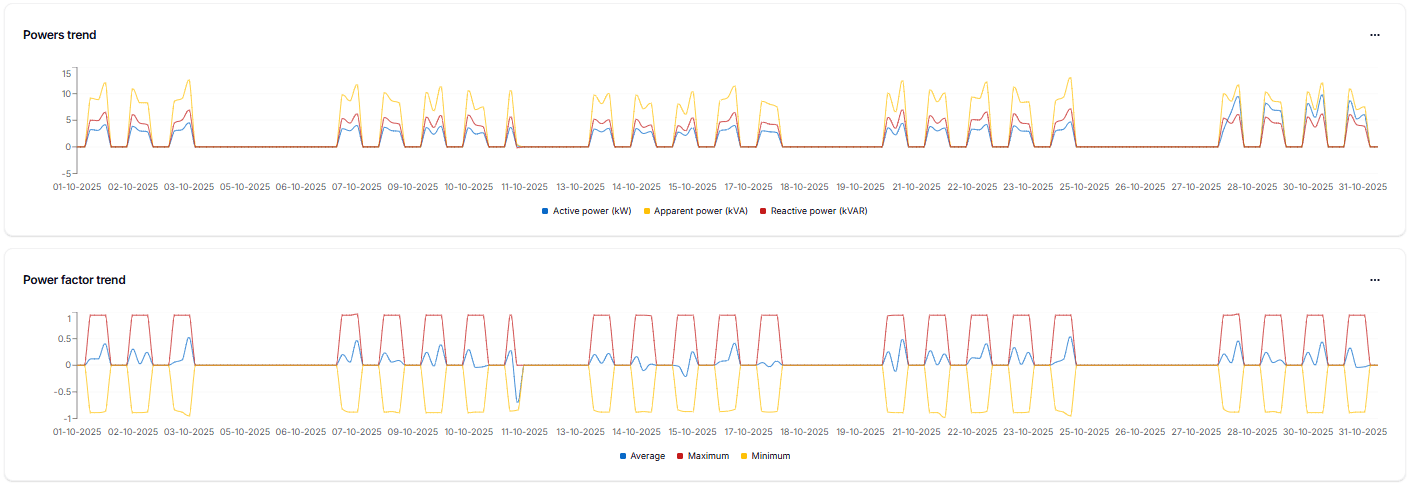
By analyzing the differences, you can identify energy inefficiencies and determine whether corrective actions (e.g., power factor correction) are required.
Power Factor Trends tracks the average, maximum, and minimum power factor over time:
- Average (blue) → The overall efficiency of energy usage.
- Maximum (red) → The highest recorded power factor during the selected period.
- Minimum (yellow) → The lowest recorded power factor, indicating when inefficiencies were most critical.
A stable power factor close to 1 reflects optimal operation. Fluctuations or values below 0.9 indicate possible inefficiencies that may increase energy costs or require compensation systems.
Energy Meter History
The Energy Meter History table provides a chronological record of the main electrical parameters measured at regular intervals. Each row corresponds to a specific timestamp.
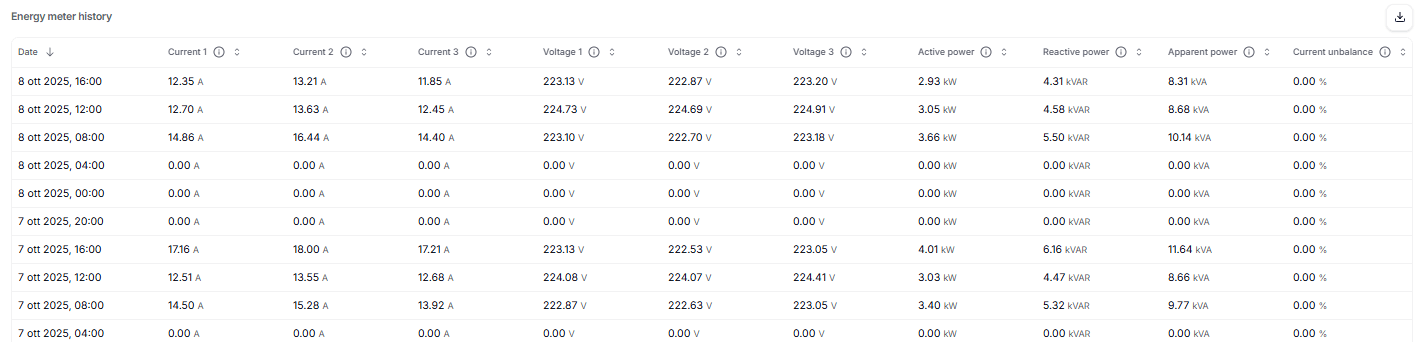
Columns
- Date → The date and time of the recorded measurement.
- Current 1 / Current 2 / Current 3 (A) → The current drawn on each of the three phases, expressed in amperes (A).
- Voltage 1 / Voltage 2 / Voltage 3 (V) → The voltage level of each phase, expressed in volts (V).
- Active Power (kW) → The effective power used for productive work.
- Reactive Power (kVAR) → The non-usable power circulating between source and load.
- Apparent Power (kVA) → The total supplied power, combining active and reactive components.
- Current Unbalance (%) → The percentage difference in current across the three phases. A value of 0% indicates perfectly balanced loads.
How to Use
- Identify load distribution across the three phases by comparing current values.
- Check for voltage stability over time (values close to 223 V across all phases indicate good balance).
- Compare active, reactive, and apparent power to evaluate energy efficiency.
- Monitor historical unbalance values to detect potential phase load issues.
This table allows operators to analyze trends at a granular level, verify system stability, and cross-check whether corrective measures (e.g., power factor correction or load balancing) are required.