
Maintenance
Overview of maintenance tracking, predictions, and intervention logging in the Machine Monitoring App.
Overview
The Maintenance section is included in the base package of the Zerynth Platform and is integrated with the Machine Monitoring App. It gives users a centralized view of maintenance status across assets, highlights plans that are close to their limit, and lets operators review history or log new interventions.
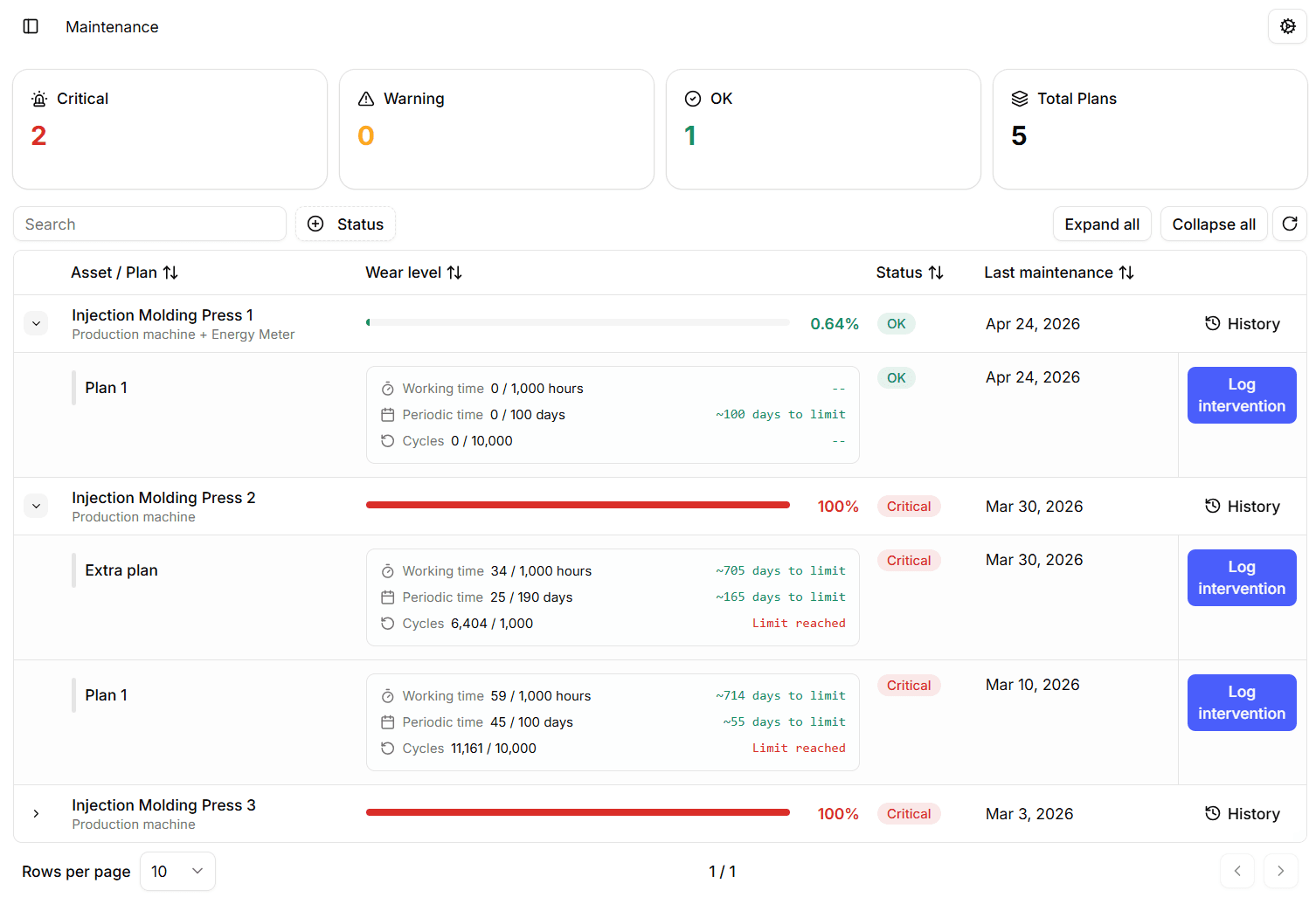
This section provides visibility into:
- Overall maintenance status by asset and plan.
- The number of assets in Critical, Warning, and OK state.
- The total number of maintenance plans currently configured.
- The latest maintenance date recorded for each asset.
- Detailed plan-level counters and predicted time remaining before each limit is reached.
For each asset, the following data is available:
- Asset / Plan -> asset name and asset type. Expand the row to inspect the related maintenance plans.
- Wear level -> progress bar showing the highest maintenance condition among the plans associated with the asset.
- Status -> summary severity for the asset:
- OK -> the asset is comfortably below the warning threshold.
- Warning -> at least one plan is approaching its limit.
- Critical -> at least one plan has reached or exceeded its limit.
- Last maintenance -> latest intervention date found across the plans of that asset.
- History -> opens the intervention history dialog for the selected asset.
For each expanded maintenance plan, the following details are available:
- Plan name -> the maintenance plan associated with the asset.
- Working time -> current worked hours compared with the configured target, plus an estimated time remaining before the limit.
- Periodic time -> elapsed periodic time compared with the configured interval, plus an estimated time remaining before the limit.
- Cycles -> current cycles compared with the configured target, plus an estimated time remaining before the limit when cycle tracking is configured.
- Plan status -> severity calculated from the highest condition value among working time, periodic time, and cycles.
- Log intervention -> opens the form used to register a new maintenance activity for that specific plan.
Filters and controls
The page includes quick tools to inspect the list more easily:
- Search -> filters assets and plans by text.
- Status -> filters the table by Critical, Warning, or OK.
- Expand all / Collapse all -> opens or closes every asset row.
- Refresh -> reloads the maintenance data.
Predictions
The predicted remaining time is an estimate based on what the asset has done since the last completed maintenance for that plan. If no completed maintenance has been logged yet, the calculation starts from when the asset was first added.
- Working time -> the system looks at how many working hours the asset has accumulated since the last reset, calculates the average daily usage, and projects how many more days are left before the configured hour limit is reached.
- Periodic time -> this is a calendar countdown. The system simply counts how many days have passed since the last completed maintenance and subtracts them from the configured interval.
- Cycles -> the system looks at how many production cycles have been recorded since the last reset, calculates the average daily pace, and estimates how many more days remain before the configured cycle limit is reached.
Predictions are refreshed using the most recent available history. If the asset has very little history, no recent activity, or a specific counter is not configured for the plan, the corresponding estimate may not be shown.
These values are meant to help teams plan ahead. Actual timing can change if the machine usage pattern changes.
New Maintenance Intervention
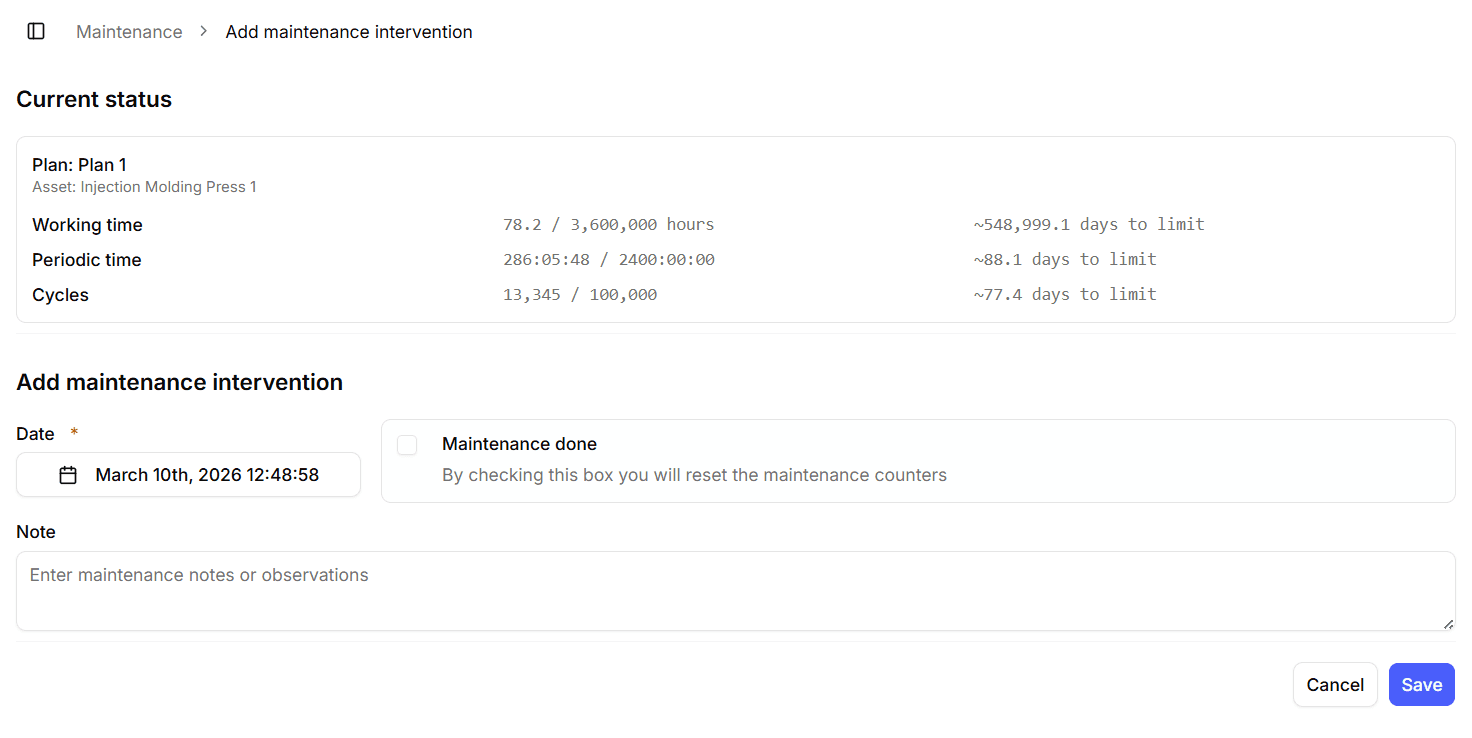
To log a new intervention:
- Click Log intervention on the desired maintenance plan.
- Review the Current status card, which shows the plan, asset, current counters, and predicted remaining time.
- Fill in:
- Date -> date and time of the intervention.
- Maintenance done -> enable this option when the intervention completes the maintenance activity and resets the maintenance counters.
- Note -> optional notes or observations about the intervention.
- Click Save to confirm.
Note: the operator stored for the intervention is the user currently logged in when the intervention is saved. That same user will appear in the Operator column of the history dialog.
Maintenance History
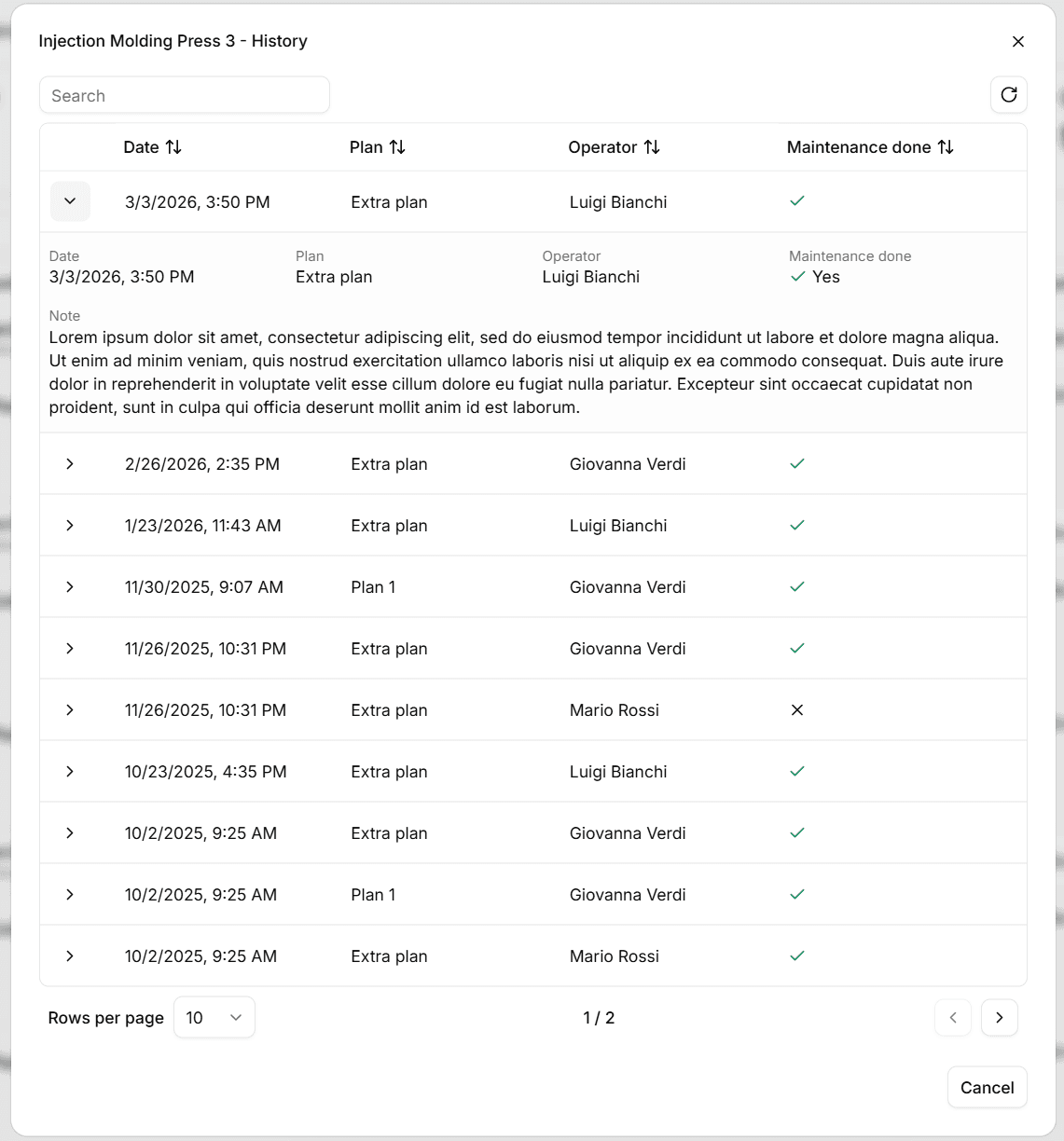
To view past interventions:
- Click History in the asset row.
- Review the history dialog for that asset.
- Expand a row to inspect the full intervention details.
For each intervention, the system displays:
- Date -> when the intervention was recorded.
- Plan -> maintenance plan linked to the intervention.
- Operator -> the logged-in user who saved the intervention.
- Maintenance done -> whether the intervention reset the maintenance counters.
- Note -> optional description entered during logging.