FumadocsZerynth Docs
Production Insights

Productivity

Overview of productivity monitoring in the Production Insights App.

Overview

The Production Insights App allows the user to monitor the productivity of the machines involved in a manufacturing process and to take control of the related parameters and KPIs.

This App is divided into three tabs:

  • Overview: Provides an overview of all production machines, highlighting key KPIs such as OEE and cycle count.
  • Productivity: Provides data and KPIs allowing users to get information about the efficiency in using production machinery.
  • Operating Mode: Provides data and KPIs allowing users to get information about the efficiency in executing a specific operating mode on that machine as per the manufacturing process in place. "Operating mode" refers to the operation of production machinery under specific conditions, defined by its setup or tooling, the part-program in use, or particular consumables (e.g., the solder paste used in an SMT soldering machine). These elements uniquely determine the machine’s performance compared to its operation under other conditions.

In general, an entity involved in a production process may operate in different modes depending on the specific task to be performed. As a result, multiple operating modes can be identified on a single machine (for example, an injection molding machine using different mold frames). Conversely, the same operating mode may be executed on several production machines that share it (for example, twin machines using the same tooling setup).

Overview tab

A filtering option has also been added for Shifts. Essentially, it is possible to evaluate the KPIs displayed on the dashboard (availability, performance, consumption, etc.) by considering the data extraction time base set with the calendar (filter set to All shifts), or to see them reparameterized relative to only the hours falling within the shifts set in Settings (in the example, the Central Shift).

Local Image Local Image

The productivity tab allows you to get information about the following three KPIs:

  • Availability KPI: The ratio between the RUN TIME ( intended as the total hours the machine is in a WORKING state within the selected time interval) and and the hours that, according to the work shifts configured in the settings section, the machine is expected to operate within the same time interval

If no work shifts are configured for the workspace where the machines are registered, it will not be possible to calculate the Availability KPI, which will therefore result as zero.

It is calculated per machine and at the workspace level, as the average of the Availability KPI values for all machines within the selected workspace.

  • Performance KPI: Calculated as the percentage ratio between the ideal cycle time and the measured cycle time of a production machinery over a specified time interval selected. The ideal cycle time is a parameter that must be configured in the dedicated settings section for each operating mode expected to be assigned on different machines.

If a machine executing a specific operating mode does not have the corresponding ideal cycle time configured, the Performance KPI cannot be calculated and will be reported as zero. See Settings page.

The Performance KPI is calculated per operating mode and per machine, as the average of the Performance KPI values for the operating modes executed on that machine within the selected time interval. At the workspace level, it is calculated as the average of the Performance KPI values for all machines within the selected workspace.

  • Quality KPI: Referred to as First Pass Yield, it is calculated as the percentage ratio between the work cycles (or pieces, depending on the case) produced by a machine and deemed conforming, and the total number of cycles (or pieces) produced by that machine within a selected time interval.

If a system cannot distinguish between conforming (good) and non-conforming (defective) cycles or pieces, the Quality KPI will be calculated as 100%.

The Quality KPI is calculated per operating mode and per machine, as the average of the Quality KPI values for the operating modes executed on that machine within the selected time interval. At the workspace level, it is calculated as the average of the Quality KPI values for all machines within the selected workspace.

OEE (Overall Equipment Effectiveness) KPI: Calculated as the product of the three KPIs: Availability, Performance, and Quality. OEE represents the overall efficiency of a production machine within a selected time interval.

If any of the three KPIs (Availability, Performance, or Quality) is zero, the OEE for the selected time interval will also be reported as zero.

The OEE KPI is calculated at the machine and workspace levels as the product of the individual KPIs (Availability, Performance, and Quality) calculated as described above.

Since it does not make sense to calculate Availability KPI at the operating mode level, a new KPI called Efficiency is introduced for operating modes. Efficiency is defined as the product of the Performance and Quality KPIs, which are calculated at the operating mode, machine, and workspace levels as described above.

OEE = Quality x Performance x Availability [%]
Local Image

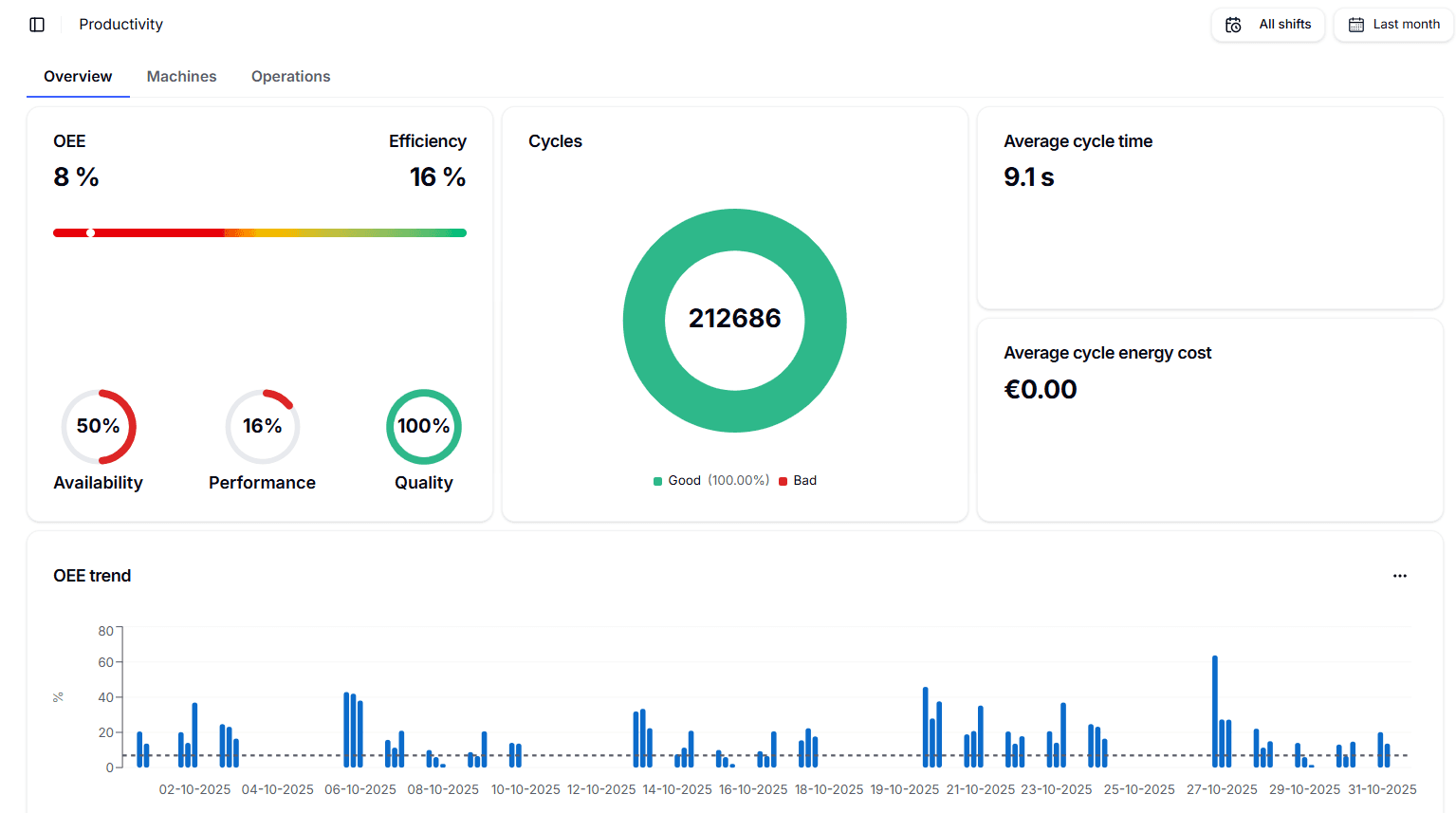
In the first row, the following information is available:

  • Average OEE (Overall Equipment Efficiency) of the machines in the workspace.
  • Average AVAILABILITY of the machines in the workspace.
  • Average PERFORMANCE of the machines in the workspace.
  • Average QUALITY of the machines in the workspace.
  • NUMBER OF CYCLES (total, good, and bad).
  • Efficiency KPI "Efficiency" is a machine performance KPI for a specific operating mode. It summarizes how effectively the machine executes that operation in a given time window, based on the actual time taken to run the cycles and the share of “good” cycles in that window. As previously anticipated, it is calculated as the product of the Performance and Quality KPIs:
Efficiency = Performance x Quality
  • Average cycle time: Mean time per good cycle. If the ideal is much lower, it explains Performance at 21% (in the picture).
  • Average cycle energy cost: Energy cost per cycle. Zero typically means the tariff isn’t configured or no energy data is linked to cycles (see Settings > Factory to configure energy cost)

The card in the second row contains the history of the average OEE for the machines in the workspace during the selected time period.
Local Image

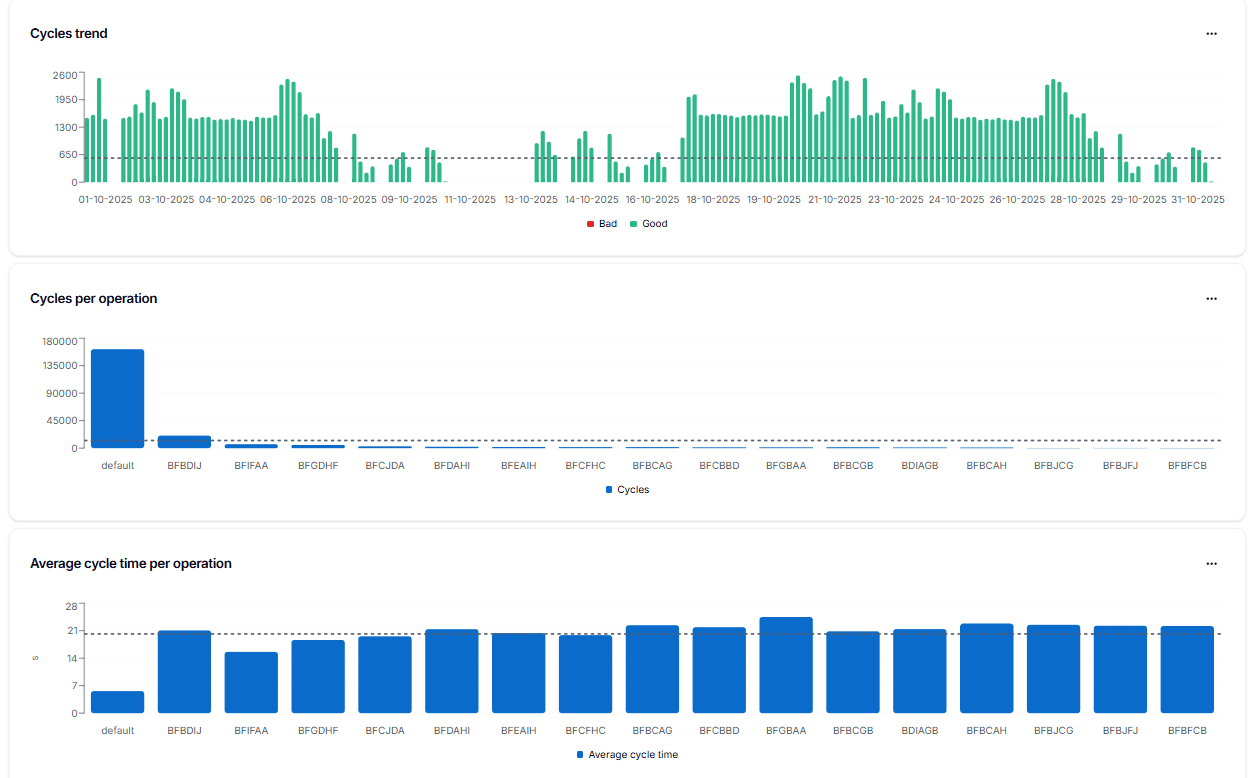
The card in the third row contains the history of the pieces made in total by every machine in the workspace.

Cycles per operation: Bar chart showing the total number of production cycles for each operation. The dashed line marks the average across all operations.

Average cycle time per operation: Bar chart showing the mean cycle time (s) for each operation. The dashed line marks the overall average cycle time.

Machines

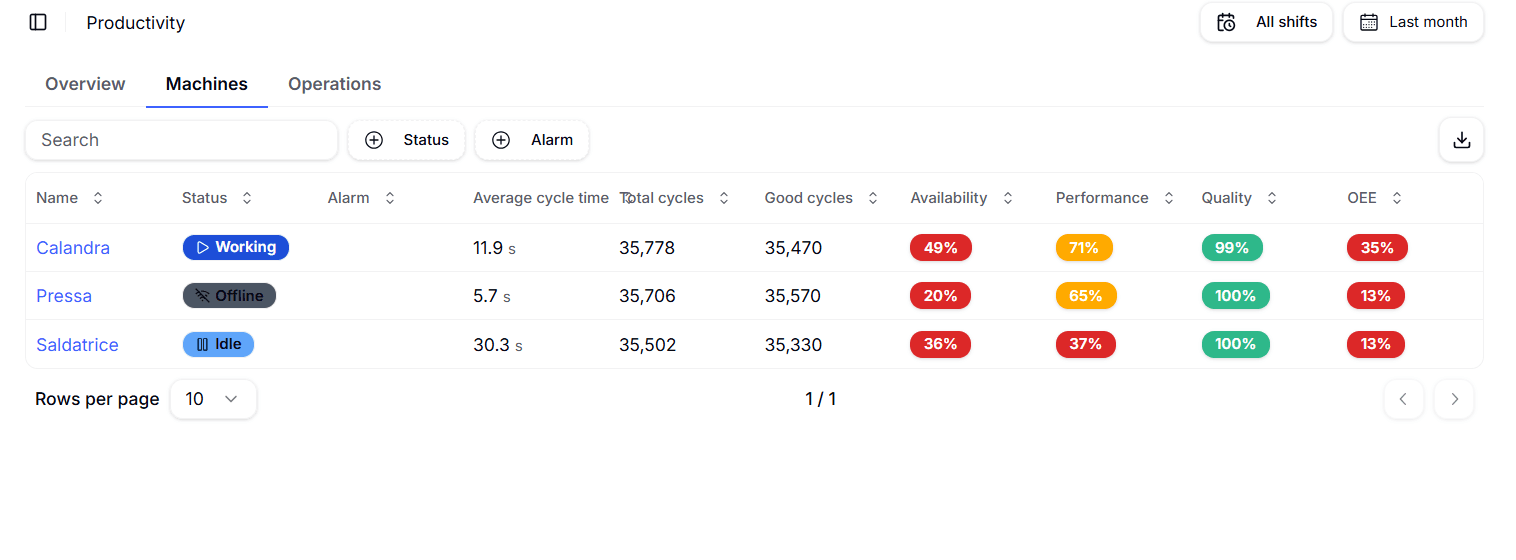
Machines shows a table with details for all machines in the workspace. You can filter the view by machine status, active alarms, time range, and shift.
Local Image

In the table, the following information is available, for the selected time period

  • Name of the machine.
  • Status of the machine (Idle, working, Alarm)
  • Average cycle
  • Total cycles.
  • Availability of the machine.
  • Performance of the machine.
  • Quality of the machine.
  • OEE of the machine.

Clicking on the name of a machine opens up a more detailed view of the single machine.

Single Machine

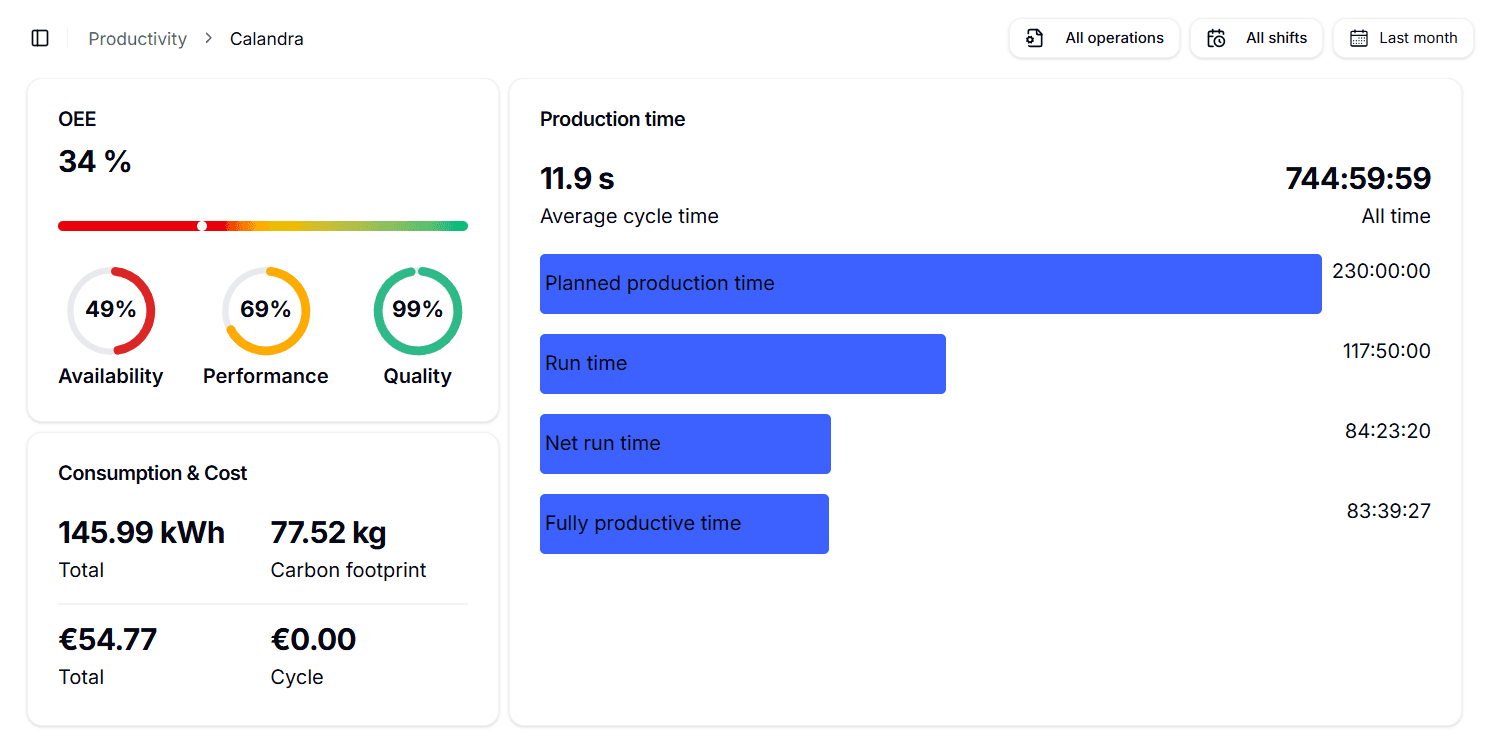
The Single Machine view offers a huge amount of information, neatly divided into sections. The first row contains:

  • OEE: Shows the overall OEE of the machine, with a slider to indicate the current situation. It also shows the single components of the OEE (availability, performance, and quality).
  • Consumption & cost: Shows the total consumption of the machine, as well as the total cost of electricity consumed and the cost per single piece.
  • Production time: Contains information about the production times of the machine, with details such as the average cycle time, planned production time, run time, net run time, and fully productive time.
    • ALL TIME: Represents the selected time interval for data extraction.
    • PLANNED PRODUCTION TIME: The time during which the machinery is considered available for operations; for this time, the reference is the configuration of WORK SHIFTS set in the SETTINGS menu.
    • RUN TIME: Coincides with the net working time (the total time during which the machinery has been in WORKING mode within the PLANNED PRODUCTION TIME interval). The difference between PLANNED PRODUCTION TIME and RUN TIME corresponds to losses related to the machine's non-utilization despite theoretically being available to the operator.
    • NET RUN TIME: The actual working time of the machinery assuming the number of cycles performed in reality but adhering to the ideal cycle time; the difference between RUN TIME and NET RUN TIME corresponds to losses, in terms of time, due to inadequate PERFORMANCE.
    • FULLY PRODUCTIVE TIME: Corresponds to the hypothetical working time in the case where in NET RUN TIME all executed cycles are considered valid, without recording any rejects. The difference between NET RUN TIME and FULLY PRODUCTIVE TIME takes into account additional losses on NET RUN TIME due to inadequate QUALITY.

The second row contains the machine status, the history of the machine status (disconnected, idle, working, or alarm), and it provides a time recap of the various states, both in time and percentage over the period selected.

  • Operating mode The Operating mode name/code executed by the machine within the selected time range
  • Efficiency (%) Overall effectiveness of the specific operation during the selected period. Formula: Efficiency = Performance x Quality (as a percentage). Indicates how well the machine converted time into conforming output for that operation.
  • Performance (%) Speed vs. the ideal rate, based on cycle times. Formula: Performance = (ICT ÷ ACT) x 100% where ICT = Ideal Cycle Time and ACT = Average Cycle Time. Values >100% are capped at 100%
  • Quality (%) First-pass yield for the operation. Formula Quality = Good Cycles ÷ Total Cycles x 100% "Good" means cycles that meet quality specifications (no rework/scrap).
  • Average Cycle Time (s) Mean time to complete one cycle for the operation (in seconds). By default computed on good cycles; if your workspace includes all cycles, the column tooltip reflects that setting.
  • Energy Cost per Cycle (currency) Estimated energy cost for a single cycle of the operation. Formula: (Energy per cycle) x (configured tariff) Shown only if a tariff is configured; values are rounded to two decimals and not applied retroactively when the tariff changes.
  • Total Cycles Count of all cycles recorded for the operation (good + bad) in the selected period.
  • Good Cycles Cycles that passed quality checks on first pass (count used in the Quality calculation).
  • Bad Cycles Cycles that failed quality checks (scrap/rework).

For each machine, you can view all associated operations in both a tabular view and a time-based timeline chart. For every operation, the following metrics are available: Efficiency, Performance, Quality, Average Cycle Time, Energy Cost per Cycle, Run Time, Total Cycles, Bad Cycles, Consumption, and CO2e. All data can be exported for further analysis or integration with other systems.

By clicking on an Operation's name, you will be redirected to the single operation in the Operating Mode tab.

Local Image

Local Image

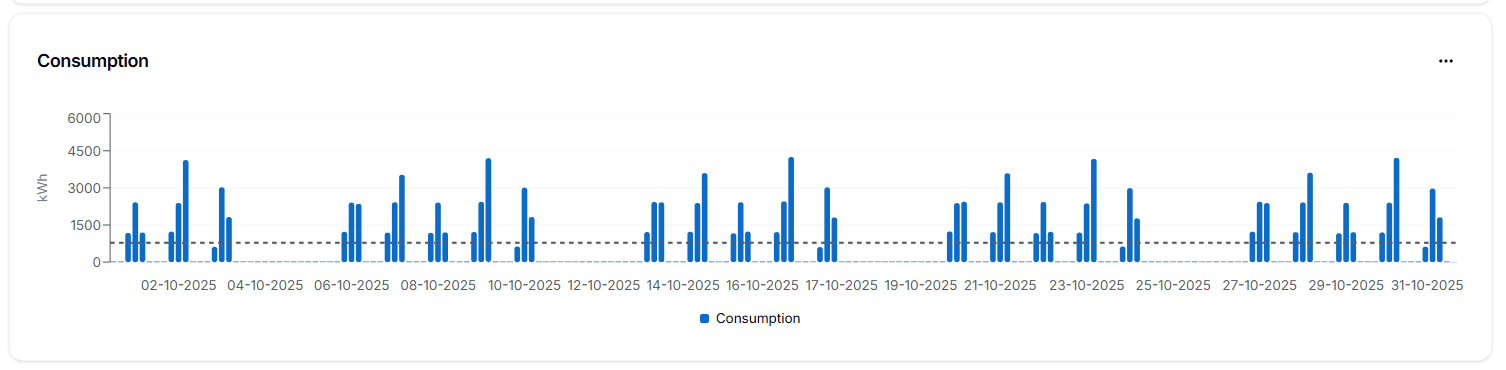
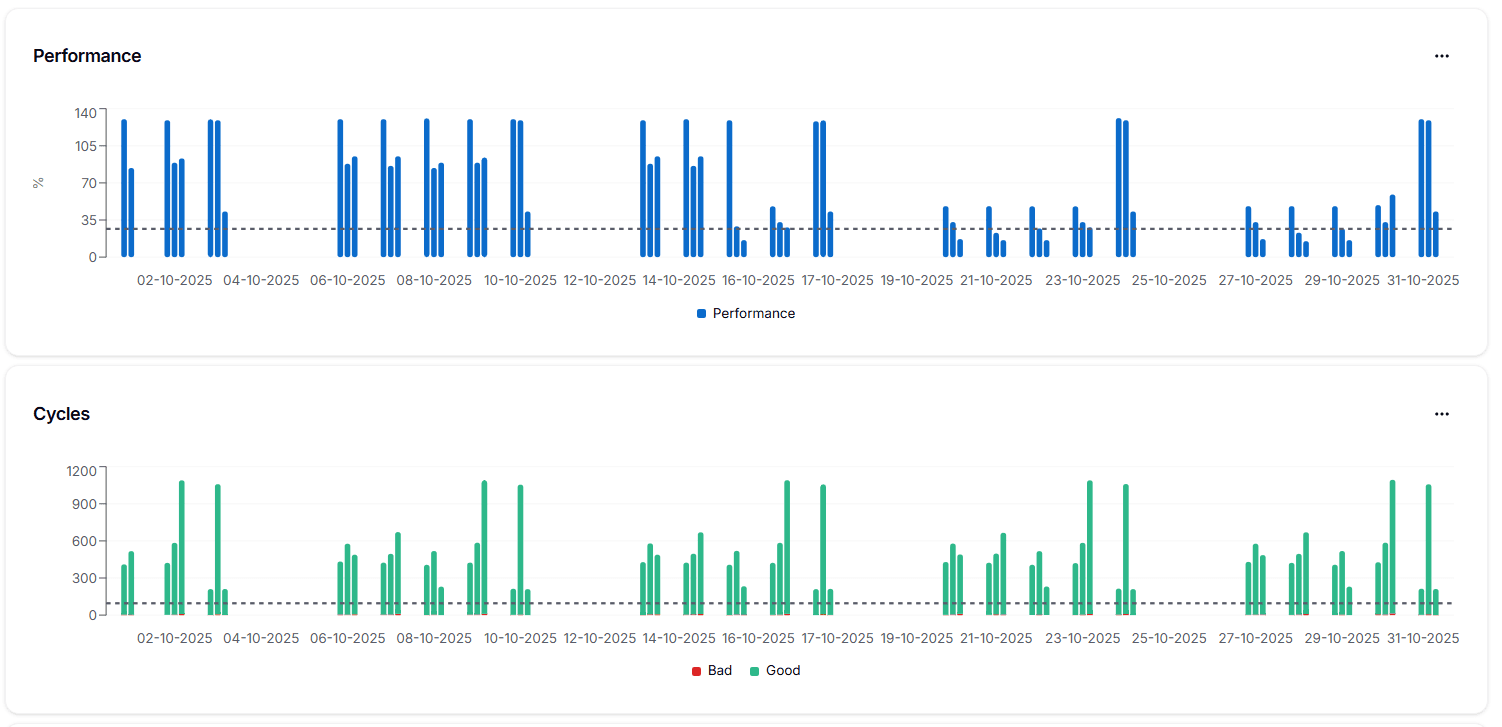
At the bottom of the page, three trend charts display Performance, Cycles, and Consumption over the selected time range. Each chart respects page filters (e.g., time range, shift) and the underlying data is exportable for further analysis or integration.

The fourth row contains the cycle/item distribution and shows the pieces (both good and defective) made in every sample by the machine.

The fifth row contains the Consumption and shows a graph of the electrical consumption (in kWh) of the machine in every sample.

Operating Mode

In Zerynth Production Insights, the concept of an operation is redefined to focus on specific machine conditions rather than traditional production or work orders, such as customer codes, batches, or job numbers. This perspective allows users to evaluate machine performance within its unique operational context.

For example, a machine may perform differently depending on the tools it uses, the settings applied, or the materials processed. By taking these variables into account, users can analyze performance metrics—such as Overall Equipment Effectiveness (OEE), Performance, and Quality—more precisely, providing insights that are more actionable than aggregated data.

The Operating Mode tab provides detailed information about the operations executed in the workspace.

Local Image

Here's how to read the ProductivityOperating Mode table:

  • Name – Operation code/name (use the chevron to expand per-machine detail).
  • Total cycles – Total cycles executed in the selected time window (top-right shows All shifts and the date range).
  • Average cycle time – Mean time per cycle (s).
  • Machines – Machine(s) where the operation ran.
  • Performance (%) – Execution speed vs. the ideal rate (red = low, green = high).
  • Quality (%) – First-pass yield (share of good cycles).
  • Efficiency (%) – Overall effectiveness for the operation (Efficiency = Performance x Quality). In the Operations section, the Efficiency KPI is also calculated as the product of the two above-mentioned KPIs:
Efficiency = Quality x Performance [%]

Single Operation

All KPIs reflect the selected Assets, Shifts, and Date range (top-right). Values are aggregated only for the chosen scope.

  • Efficiency (%) = Performance × Quality.
  • Performance (%) = (ICT ÷ ACT) × 100. ICT (Ideal Cycle Time) comes from Settings/BOM; ACT is computed over the selected period.
  • Quality (%) = Good Cycles ÷ Total Cycles.
  • Run time = cumulative time the machine was in Run while this operation was active.
  • Consumption (kWh) totals energy during the operation.
  • CO2e (kg) = Consumption × configured emission factor.
  • Cost uses the configured energy tariff.
  • Energy cost per cycle = Cost ÷ Good Cycles (shown only if a tariff is set).

Cycle distribution (donut) Shows how the operation’s cycles are split by machine; click a slice to filter the table below to that asset.

Table interactions: Search, sort columns, and expand a row to see per-machine details (where available).

Export & rounding Use the download icon to export the underlying data (CSV). Monetary values are rounded to two decimals. Tariffs/emission factors are not applied retroactively; if not configured you may see €0.00 or 0 kg.

In the second part of the page, some graphics explore trend and distribution over time of operations, in total cycles, efficiency, cycle time, cycle energy cost. The card in the second row contains the efficiency per operation and the effectiveness of each operation, with an indication of the average.

The card in the third row contains the total number of cycles for each operation. The card in the fourth row contains the Average Cycle Time (ACT) for each operation.

The card in the fifth row contains the Average Cycle Energy Cost, which is the average cost of electricity for each working cycle.

On this page