
Users
Manage organization users, invitations, roles, and access.
Users
The Users section allows organization administrators to manage access to the platform at the organization level.
From this page, you can:
- View all users belonging to the organization
- Invite new users
- Manage user roles
- Revoke access when needed
Users Overview
The main page displays a table listing all organization users.
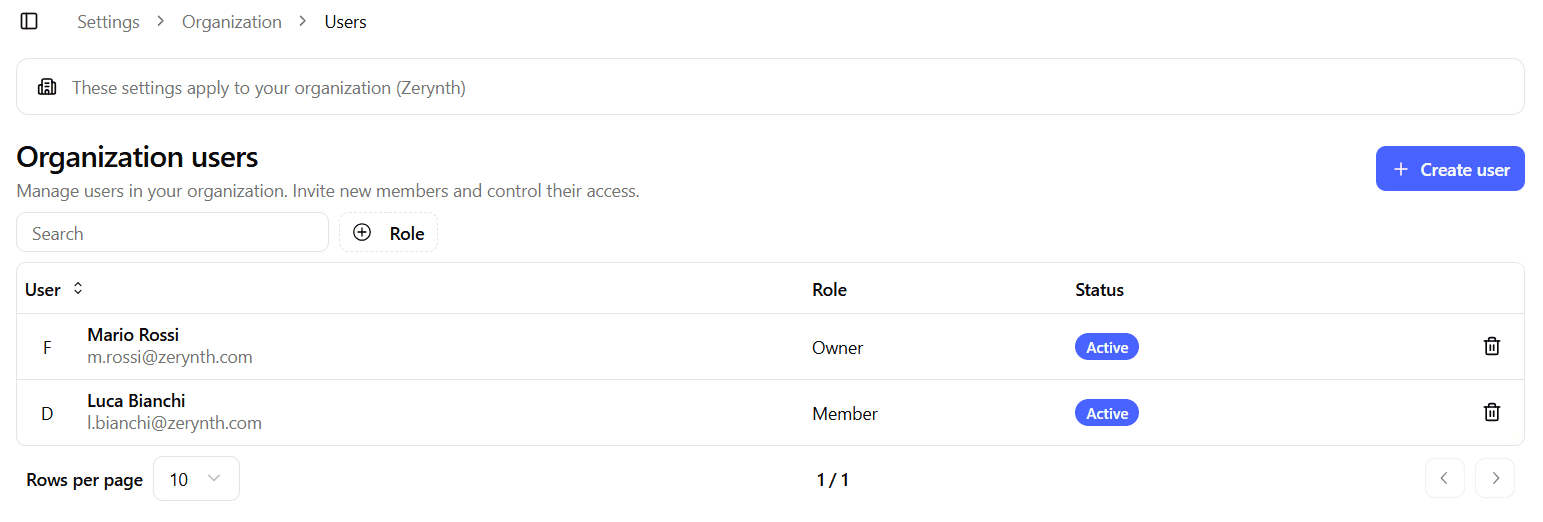
The table includes:
- User – Full name and email address
- Role – User role within the organization (
OwnerorMember) - Status – Current access status
- Active: User has accepted the invitation
- Inactive: User has been invited but has not yet accepted
- Remove – Action to revoke access from the organization
From this page you can invite new users and manage existing ones.
Inviting a New User
Click Create user to invite a new user to the organization.
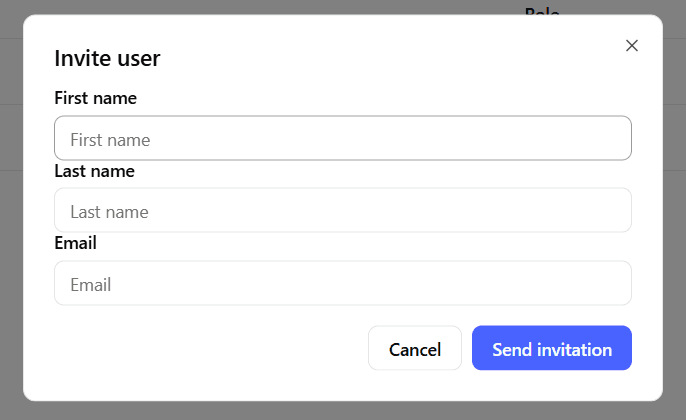
The invitation form includes the following fields:
First Name
The first name of the user being invited.
Last Name
The last name of the user being invited.
The email address used to send the invitation.
The invited user will receive an email containing instructions to:
- Accept the invitation
- Set their password
- Activate their account
Invited users do not gain access to any workspace until they are explicitly added to one.
After Sending an Invitation
Once the invitation is sent:
- The user appears in the table with Inactive status
- An email invitation is sent automatically
The administrator who sent the invitation receives a notification prompt suggesting to:
Add the user to a workspace
Following this prompt redirects to the Organization → Workspaces section, where workspace access can be configured.
Removing a User
The Remove action revokes the user’s access to the organization.
- The user will immediately lose access to all organization workspaces
- This action cannot be undone
- The user can be re-invited later if needed
Only users with sufficient administrative permissions can remove users.
Best Practices
- Invite users at the organization level before assigning them to workspaces.
- Assign workspace access immediately after invitation to reduce onboarding friction.
- Periodically review inactive users and revoke stale invitations.
- Use roles carefully to limit administrative access.