
Workspaces
Create and manage workspaces and assign organization members to them.
Workspaces
The Workspaces section allows you to manage all workspaces within the organization.
From this page, you can:
- View all organization workspaces
- Create new workspaces
- Manage workspace-level member access
Workspaces Overview
The main page displays a table listing all workspaces in the organization.
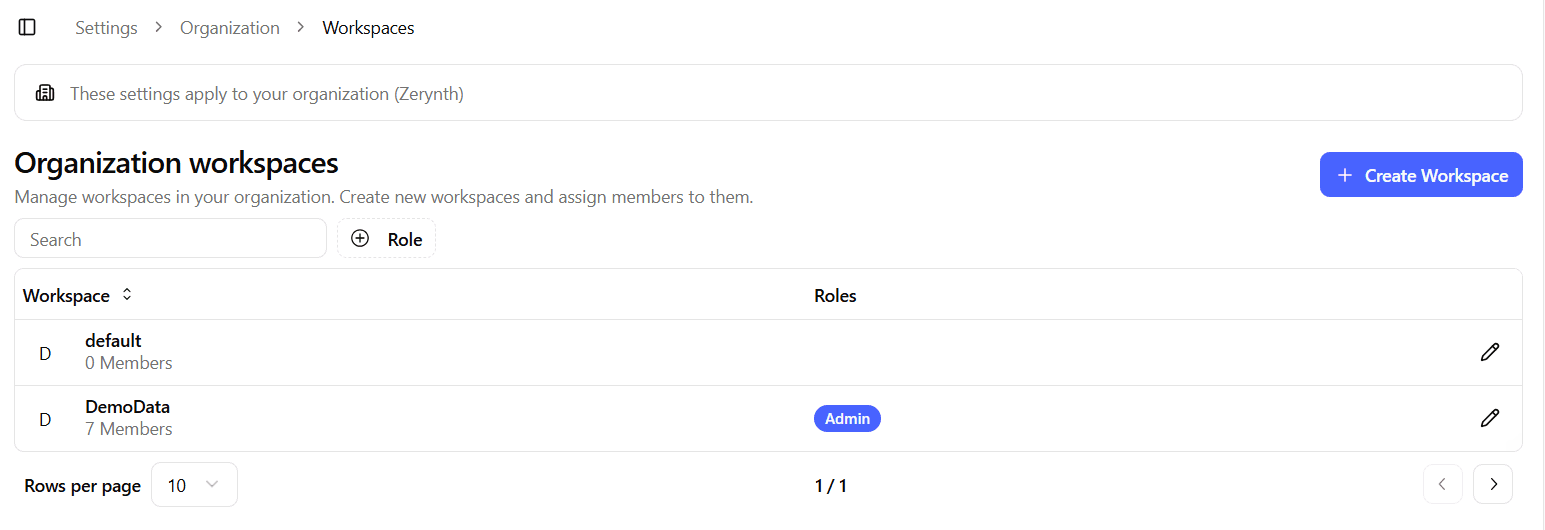
The table includes:
- Workspace – Workspace name
- Role – The role you (the current user) have within that workspace
- Edit – Navigate to the workspace member management page
This view provides a centralized overview of workspace structure and your level of access.
Create Workspace
Click Create workspace to create a new workspace within the organization.
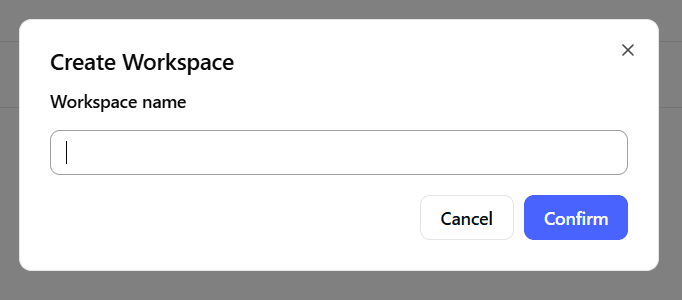
The dialog includes a single required field:
Workspace Name
A human-friendly name used to identify the workspace across the platform.
After creation:
- The workspace becomes available in the organization.
- Members can be assigned to it.
- Workspace-specific settings can be configured separately.
Managing Workspace Members
Click Edit on a workspace row to access its member management page.
This page allows you to manage which organization users have access to that specific workspace.
Workspace Member Overview
The workspace detail page displays a table listing all organization members assigned to the selected workspace.
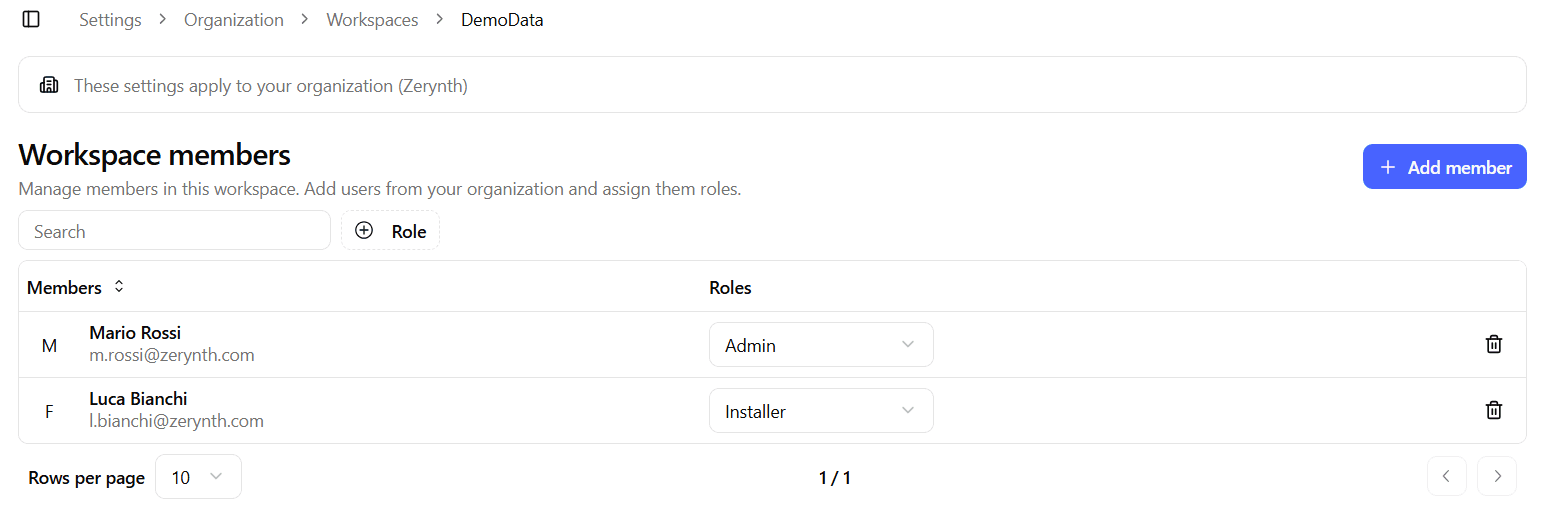
The table includes:
- Member – Full name and email
- Role – Workspace-specific role:
- Admin
- Installer
- Operator
- Delete – Removes the member from the workspace
Removing a user from a workspace does not remove them from the organization.
Roles define what actions a user can perform within the workspace. Role permissions are described in a separate section of the documentation.
Add Member to Workspace
Click Add member to assign an organization user to the workspace.
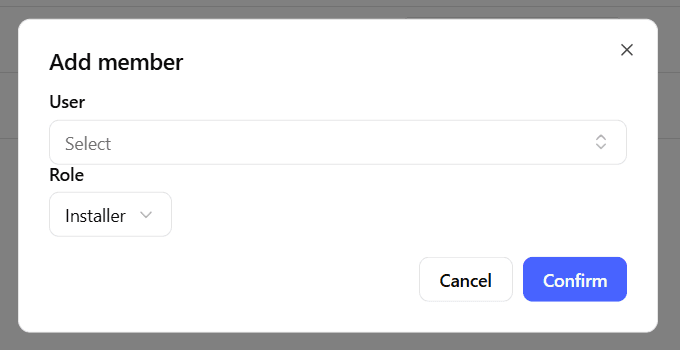
The dialog includes:
Member
A dropdown selector listing registered organization users.
Only users already invited to the organization can be selected.
Role
A dropdown selector to assign the workspace-specific role:
- Admin
- Installer
- Operator
After confirmation:
- The user gains access to the workspace
- Their permissions are determined by the assigned role
Access Model Overview
Access to the platform follows a two-level model:
- Organization level
- Users are invited and registered.
- Workspace level
- Registered users are assigned to specific workspaces with defined roles.
A user must be both:
- A member of the organization
- Assigned to a workspace
to access and operate within that workspace.
Best Practices
- Keep workspace access aligned with operational responsibilities.
- Regularly review workspace membership.
- Remove users from workspaces when they no longer require access.
- Use roles consistently across workspaces to avoid confusion.