Edge
Manage hosts and agents in the Edge tab.
Overview
The Edge tab is now organized around hosts and agents instead of a flat device list.
- Host - The physical hardware running one or more agents.
- Agent - The script running on a host, reading data from connected machines, and sending it to the Cloud.
- Asset - The workspace asset linked to an agent.
Each agent can be linked to only one asset. The association between an agent and its host is detected automatically when the agent starts sending data.
Page layout
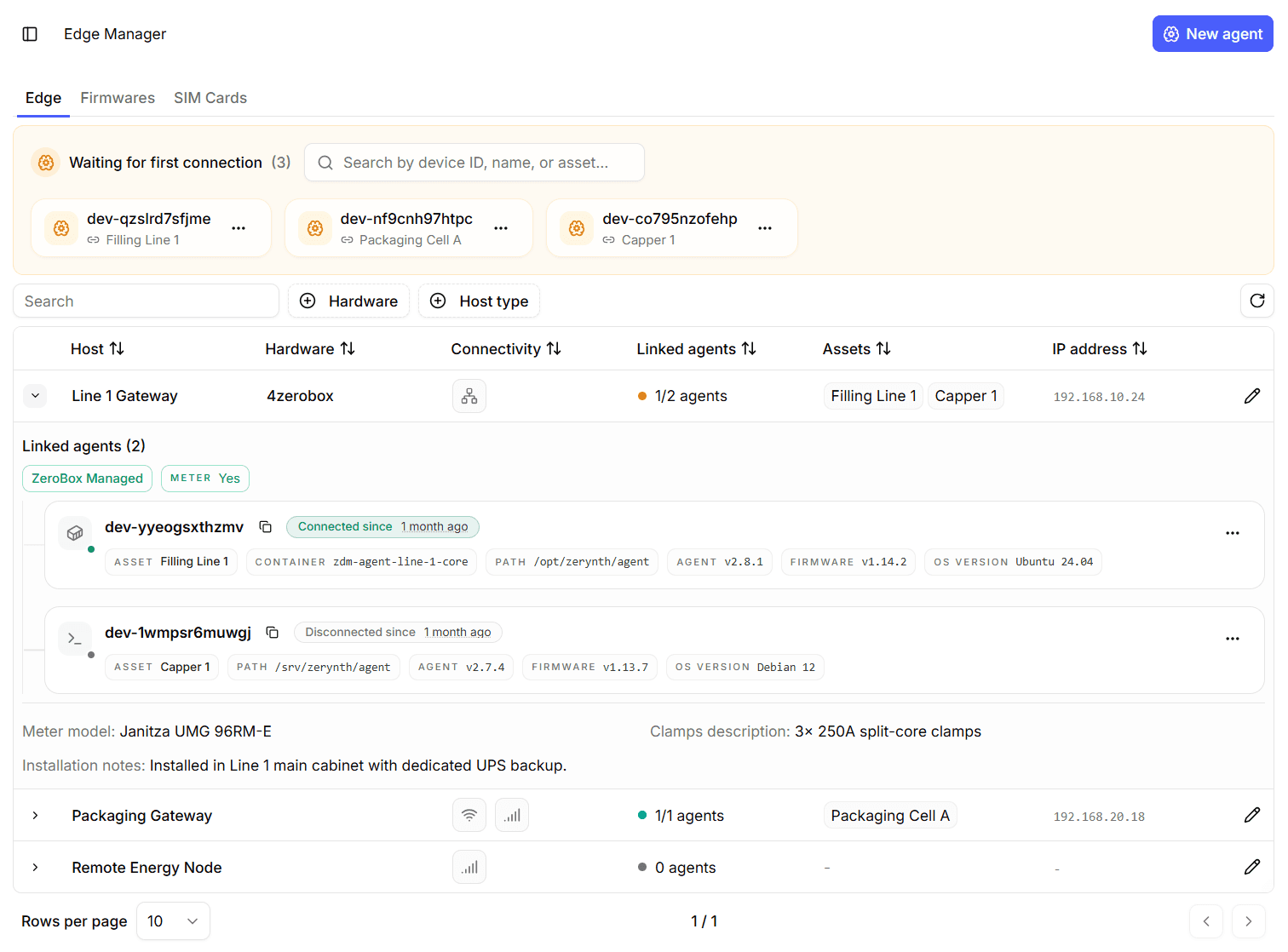
The page has two main areas:
- Pending agents panel - A yellow panel above the table that shows newly created agents waiting for their first connection.
- Hosts table - The main table where each top-level row is a host and each expanded sub-row is an agent linked to that host.
In the hosts table you can:
- Inspect host information such as name, hardware, connectivity, linked agents, assets, and IP address.
- Expand a host row to see the agents linked to it.
- Open an agent to access its existing Details page.
- Use search, sorting, refresh, and available filters to find hosts and agents more quickly.
Host rows
Each main row in the table represents one host.
Host row fields
- Host name - The name of the host.
- Hardware - The hardware type of the host, such as a ZeroBox or a custom deployment.
- Connectivity - The available connectivity types, shown as icons for Ethernet, Wi-Fi, or GSM.
- Linked agents - A summary of the agents linked to the host, including how many are currently connected.
- Assets - The assets linked through the agents running on that host.
- IP address - The LAN IP address of the host, when available.
Host row actions
The main host row has only one action:
- Edit - Opens the host edit page.
The host edit page lets you update:
- Host name.
- Whether an energy meter is installed.
- Meter model.
- Clamps description.
- Installation notes.
- Network credentials reference.
- Additional hardware.
Expanded host panel
When you expand a host row, the panel shows:
- The number of linked agents.
- A host type badge, such as ZeroBox-managed, Customer host, or Unknown.
- A meter badge showing whether an energy meter is installed.
- The list of agent subrows linked to that host.
When available, the same panel also shows these host details:
- Meter model.
- Clamps description.
- Installation notes.
These host details are editable through the Edit action in the main host row.
Agent rows
Each subrow in the expanded host panel represents one agent linked to that host.
Agent row fields
- Agent ID - The unique identifier of the agent.
- Connection status - Whether the agent is connected, disconnected, or has never connected, including the latest status timestamp when available.
- Linked asset - The asset assigned to the agent.
- Container name - The container where the agent is running, when applicable.
- Path - The path of the script running on the host.
- Agent version - The version of the agent.
- Firmware version - The version of the firmware running on the agent side.
- OS version - The operating system version running on the host.
Agent row actions
Each agent subrow provides the following actions:
- Properties - Opens a modal that displays the agent properties.
- Schedule a job - Opens the same job dialog available in the Details page.
- Schedule a FOTA - Opens the same FOTA dialog available in the Details page.
- Reset device - Opens the same reset modal available in the Details page, allowing you to request a reset if the device is misbehaving or not responding as expected.
- Change asset - Lets you change the asset linked to the agent.
- Delete agent - Removes the agent.
Creating a new agent
To create a new agent:
- Click New Agent.
- Select the asset to link to the agent.
- Confirm the creation.
The linked asset is the only input required during creation.
Hosts are not created manually from this page. Users create agents, and hosts are created or matched automatically when agents first connect.
After creation, the agent appears in the pending agents panel instead of the main table. For each pending agent you can:
- Generate the certificate.
- Change the linked asset.
- Delete the agent.
The agent moves to the main hosts table only after it starts sending data.
Automatic host detection and linking
When the firmware starts, it sends boot messages to the Cloud. Those messages include the information needed to identify the host that the agent belongs to.
The platform handles the association automatically:
- If the boot message comes from the first agent of a new host, a new host is created.
- If the host already exists, the new agent is linked to that existing host.
- Once the agent is connected and recognized, it is removed from the pending panel and shown under the correct host in the table.