
Details
Click a device name in the Edge table to open its Details page.
The Details page contains multiple tabs at the top. Each tab provides different information and tools for the selected device.
Overview tab
The Overview tab shows key information about the device, including connection status, hardware info, and recent activity.
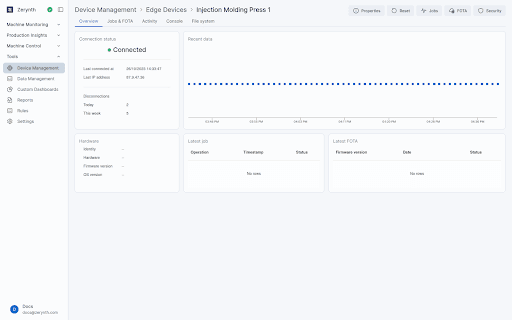
The page is organized into cards with the following content:
- Connection status Shows whether the device is currently connected, the time and IP address of the last connection, and the number of disconnections in the last 24 hours and in the last week.
- Recent data A chart displaying one dot for each message sent by the device in the last hour.
- Hardware Shows the device serial number, the device type, the firmware version, and the Zerynth OS version.
- Latest job Shows the most recent job sent to the device, including its status and the date and time of the request.
- Last FOTA Shows the most recent firmware-over-the-air (FOTA) update sent to the device, including its status and the date and time of the request.
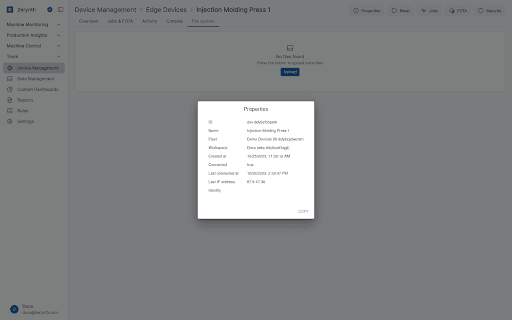
Properties
The Properties button opens a modal displaying all properties of the device.
Reset
The Reset button opens a modal that lets you request a device reset if the device is misbehaving or not responding as expected.
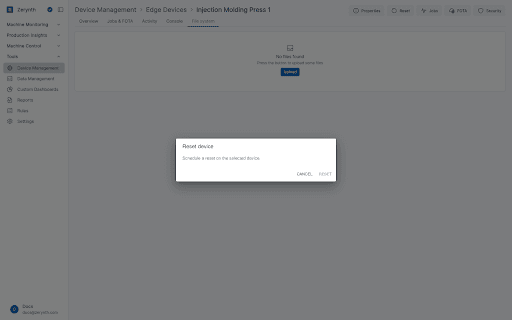
Resetting a device works only if the device is currently connected to the Cloud.
Jobs & FOTA
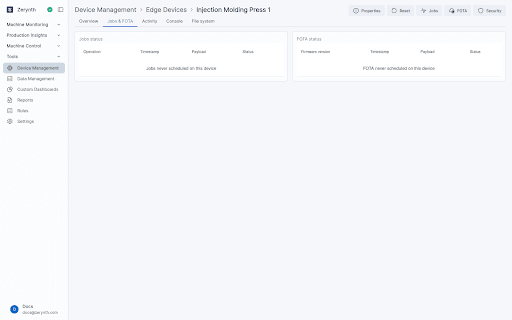
The Jobs & FOTA tab shows the history of jobs and firmware updates sent to the device. It includes two main cards:
- Jobs status Displays each job name, the timestamp of the job request, the payload, and the job status (Pending, Done, or Failed).
- FOTA status Displays each FOTA name, the timestamp of the request, the payload, and the FOTA status (Pending, Done, or Failed).
Scheduling a new job
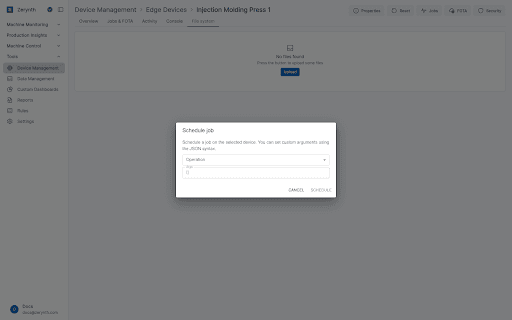
Use the Jobs button at the top of the page to schedule a new job. This opens a modal with the following fields:
- Operation - Name of the job. The available options are taken from the list sent by the device at connection.
- Args - Arguments for the job in JSON format. If the job requires no arguments, use an empty JSON object (
{}).
Scheduling a new FOTA
Use the FOTA button at the top of the page to schedule a firmware-over-the-air update. This opens a modal with:
- Firmware - Firmware to install on the device. The list includes all firmwares uploaded to the current workspace.
- Version - Selected version of the firmware to install.
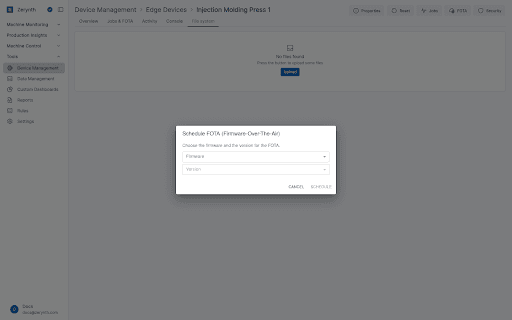
Jobs and FOTAs can be executed only if the device is connected to the Cloud.
Activity
The Activity tab lists all events generated by the device or sent to the device from the Cloud.
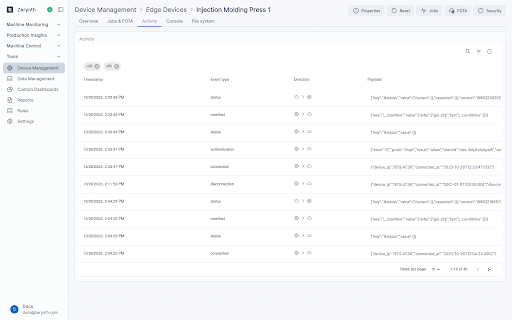
The table shows:
- Timestamp - Time of the event.
- Event type - Type of event that occurred.
- Direction - Direction of the event: Cloud to Device or Device to Cloud.
- Payload - Event payload.
The table supports:
- Sorting by any column (click the header to sort; click again to reverse the order).
- Filtering by timestamp, event type, and direction.
For more details on filters, see the Knowledge Base.
Console
The Console tab shows a live stream of messages sent by the device.
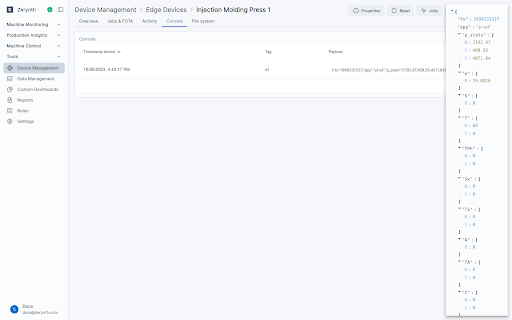
Messages are displayed in a table with:
- Timestamp
- Tag
- Payload
You can sort the table by any column; click the column header to change the sort order.
File system
The File system tab provides a view of the files stored on the device.
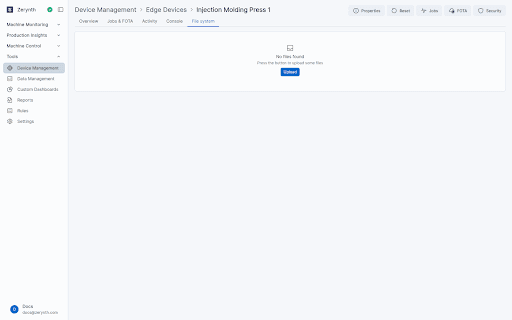
If there are no files on the device, a message is shown instead, along with an option to upload files.
Security
The Security button at the top of the page opens a modal to download a new identity for the device. This allows the device to be registered again to the Cloud with a new identity. The previous identity is revoked.
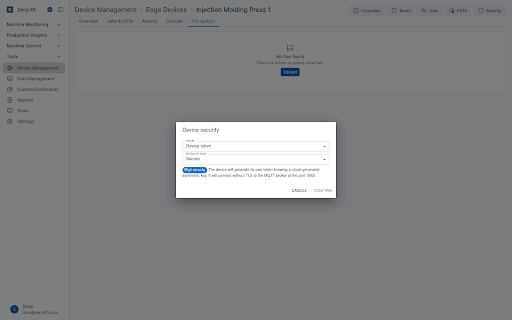
The modal includes:
- Mode
- Device token (default) - The device generates a token using a cloud key.
- Cloud token - The Cloud generates the token.
- Endpoint type
- Secure - Uses a secure endpoint (port
8883). - Insecure - Uses an insecure endpoint (port
1883).
- Secure - Uses a secure endpoint (port