
Currency & Timezone
Configure currency and timezone for the current workspace.
Currency & Timezone
The Currency & Timezone section defines the financial and temporal context for the current workspace.
These settings apply at the workspace level and affect how data is interpreted, displayed, and synchronized across the platform.
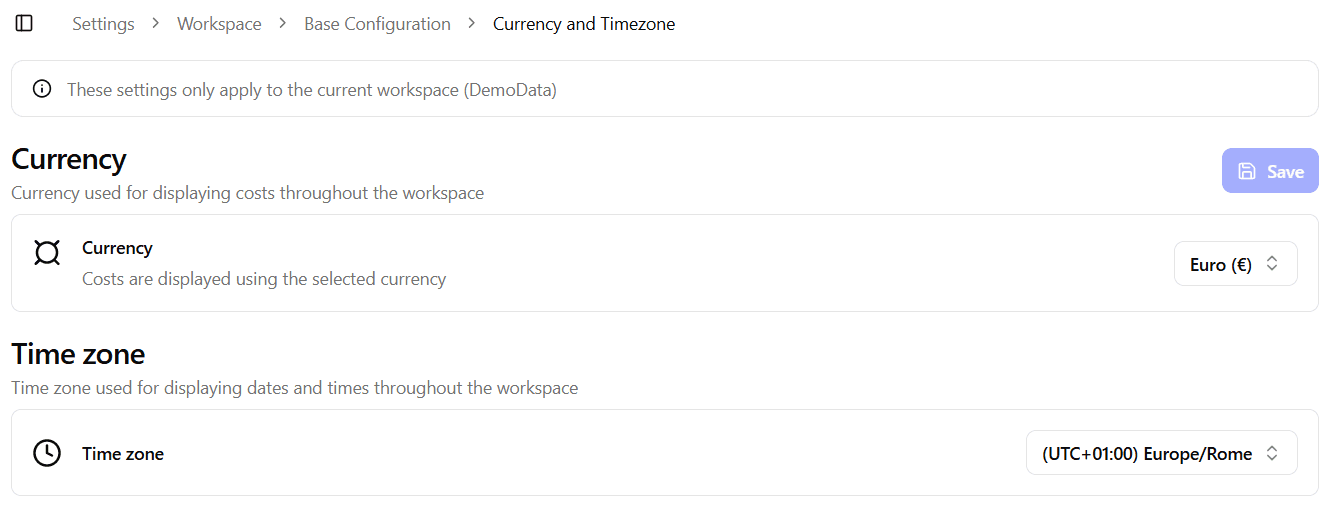
Workspace Scope
Both currency and timezone are workspace-specific settings:
- They apply only to the currently selected workspace
- Different workspaces within the same organization can use different configurations
- Changes take effect immediately after saving
Make sure you are operating in the correct workspace before modifying these values.
Currency
The Currency selector defines the default currency used by the workspace.
This setting is used for:
- Cost-related data
- Energy costs and pricing
- Financial reports and summaries
- Any monetary values displayed within the workspace
Choose the currency that best matches the operational and accounting context of the workspace.
Changing the currency affects how values are displayed and does not retroactively convert historical data.
Timezone
The Timezone selector defines the reference timezone for the workspace.
The workspace timezone is especially important because it is used to:
- Align work shifts with real-world time
- Synchronize shifts data with activity data coming from devices
- Ensure consistent timestamps across production, energy, and maintenance data
- Display charts, logs, and events correctly
Correct timezone configuration is critical for accurate data correlation between device activity and operational schedules.
An incorrect timezone may result in misaligned shifts, inaccurate analytics, and misleading reports.
Best Practices
- Set currency once during initial workspace setup and avoid changing it frequently.
- Always verify the timezone matches the physical location of the devices associated with the workspace.
- Double-check timezone settings before configuring work shifts and production schedules.