
Work Shifts
Configure work shifts used for dashboards filtering and OEE availability calculations.
Work Shifts
The Work Shifts section allows you to define the working schedule for the current workspace.
Shifts are used to:
- Filter data across dashboards
- Compute the Availability parameter in OEE calculations
Accurate shift configuration is essential for correct performance and availability metrics.
Shifts Overview
The main page displays a table listing all configured shifts.
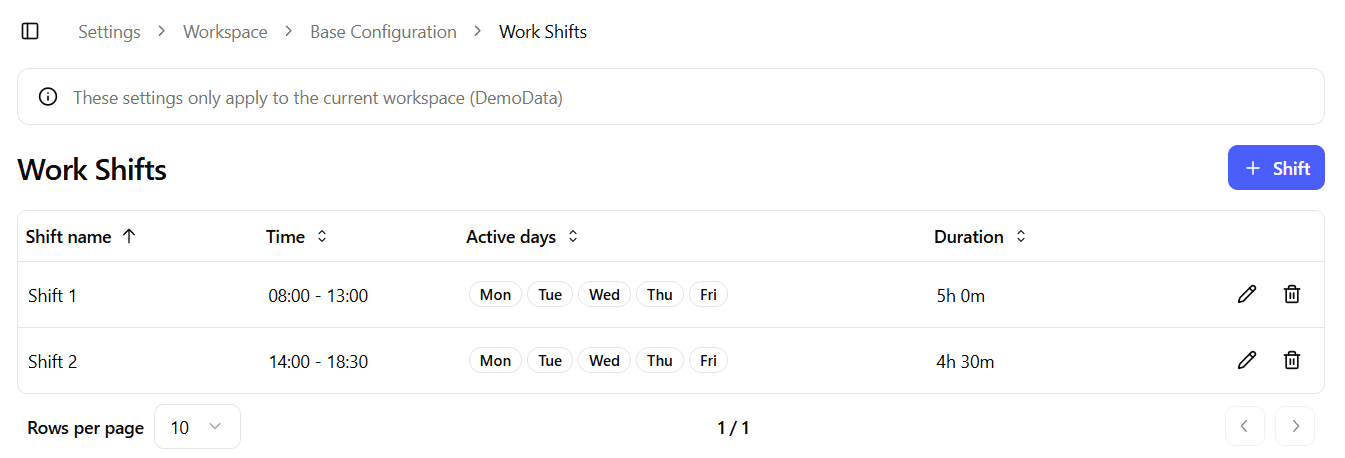
The table includes the following columns:
- Shift name – The label used to identify the shift
- Time – The configured time range
- Active days – The days on which the shift is active
- Duration – Total duration of the shift
- Actions – Edit and Delete buttons
From this page you can:
- Create a new shift
- Edit an existing shift
- Delete a shift
Create / Edit Shift
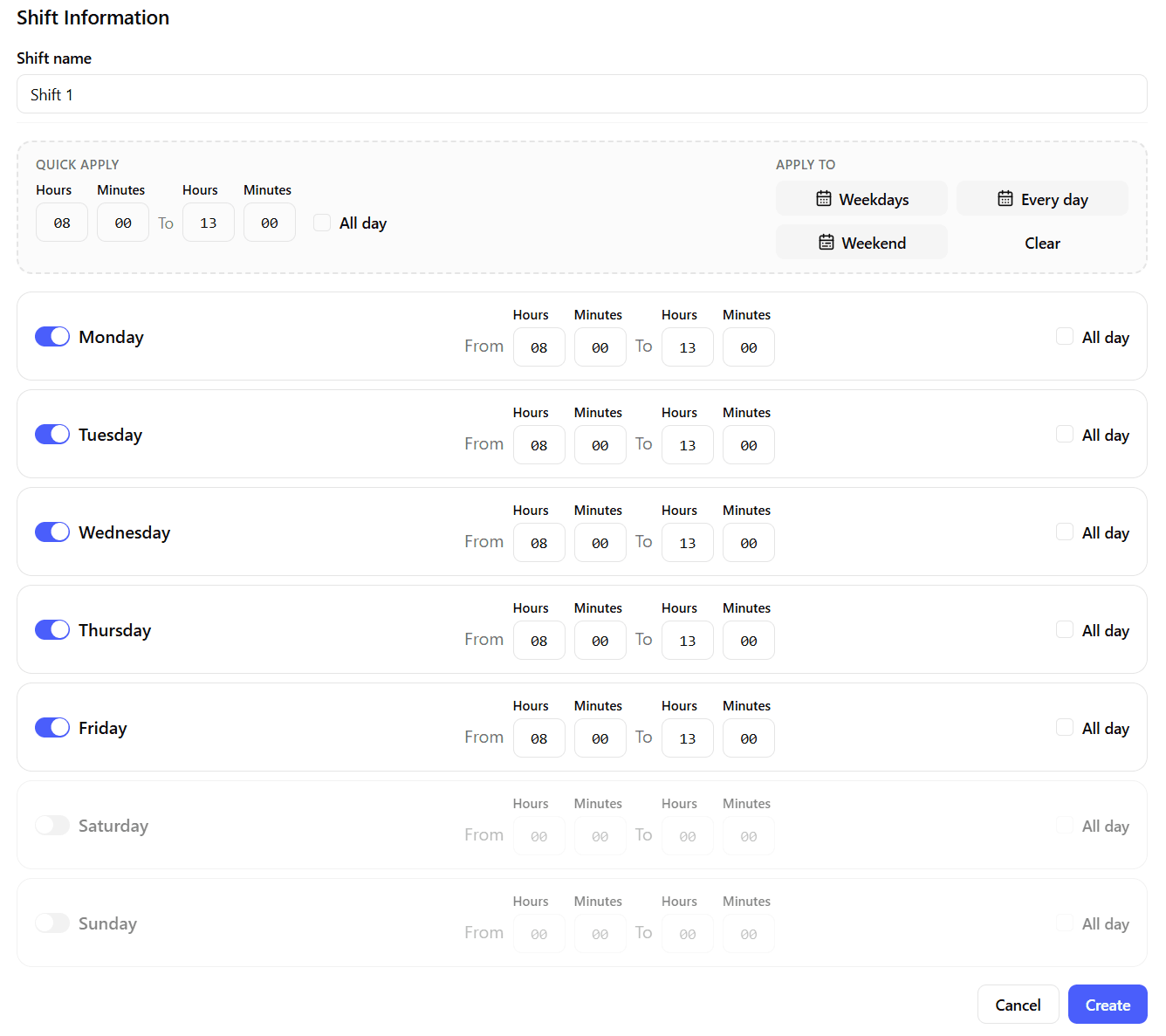
The Create and Edit forms share the same layout.
When editing, the form is pre-populated with the selected shift configuration.
Shift Name
A simple text input used to define the shift name.
Use clear and consistent naming conventions (e.g., Morning Shift, Night Shift, Weekend Shift).
Shift Scheduling
The scheduling section allows you to define when the shift is active during the week.
The scheduler consists of:
- A Quick Apply section for bulk configuration
- Individual day controls for granular adjustments
Quick Apply
The Quick Apply section allows you to quickly define a time range and apply it to multiple days at once.
You can:
- Set a From and To time (Hours and Minutes)
- Mark the shift as All day
- Apply the configuration to:
- Weekdays
- Weekend
- Every day
- Clear the selection
This is useful when most days share the same schedule.
Day-by-Day Configuration
Below the Quick Apply section, each day of the week can be configured individually.
For each day, you can:
- Enable or disable the day
- Set start and end time
- Mark the shift as All day
This allows full flexibility for:
- Custom weekend schedules
- Reduced Friday hours
- Special operational patterns
If a day is disabled, the shift does not apply on that day.
Best Practices
- Verify that the workspace timezone is correctly configured before creating shifts.
- Use consistent naming conventions across workspaces.
- Avoid overlapping shifts unless explicitly required by your operational model.
- Double-check shift durations to ensure accurate Availability calculations in OEE.